
Four Amazon Reports Every Seller Must Pull, Plus BeanHawk Automation

Four reports drive accurate Amazon bookkeeping: the settlement report, the unified transaction report, fee/adjustment reports, and inventory/FBA reports. Your first move, before touching anything else, is to download the most recent settlement and transaction reports and match the last bank deposit against them. The single most damaging habit in Amazon accounting is booking that net deposit straight to revenue.
TL;DR:
- Most of the accounting errors stem from booking net deposits as revenue instead of matching the gross sales minus fees, which can overstate income and tax liabilities.
- The settlement report provides a detailed record of cash flows, including fees, refunds, and reserve movements, and should be the primary document for bank reconciliation.
- The unified transaction report is essential for accurately recognizing revenue, COGS, and profitability at the SKU level by linking order details to costs and refunds.
- Fee and adjustment reports should be categorized properly in your chart of accounts, with storage fees split into standard and long-term expenses to monitor seasonal spikes.
- Regularly reviewing inventory, shipment, and reimbursement reports helps identify discrepancies early, ensuring proper claims and reducing loss of margins over time.
Table of Contents
- Which Amazon Report Do You Actually Need?
- Settlement Report: Read It, Post It, Reconcile It
- Unified Transaction Reports: Order-Level Revenue and COGS
- Fee and Adjustment Reports: Building Your Chart of Accounts
- Inventory and FBA Reports: Validating Stock and Claiming Reimbursements
- How to Access and Download Your Amazon Reports
- Monthly Reconciliation Checklist and the Errors That Cost You
- Year-End Tax Reporting: Reconciling Your 1099-K
- BeanHawk in Practice: Automating Recovery and Settlement Posting
- Do Marketplace Reports Look the Same in the US and EU?
- What Actually Matters in Amazon Accounting
- Run a Free Audit Before Your Next Close
- Sources
- FAQ
Which Amazon Report Do You Actually Need?
Every bookkeeping question you have maps to one specific file, not a general “Amazon report” folder. Knowing which one to open saves hours of guessing during close.
The settlement report is your source of truth for cash. It nets out gross sales, fees, refunds, reimbursements, and reserve changes into the exact number that lands in your bank account, issued roughly every 14 days. The unified transaction report is your source of truth for revenue: it breaks that lump sum into individual orders, so you can post sales on the date they happened rather than the date Amazon paid you. Fee and adjustment reports isolate referral fees, FBA fulfillment charges, storage costs, and ad spend, so you can route each to the right account instead of dumping them all into one bucket. Inventory and FBA reports track what Amazon physically holds and flag discrepancies you can turn into reimbursement claims. Payments reports (found under Seller Central’s payments dashboard) give you a running ledger view between settlement cycles.
A quick way to decide which file to open:
- Bank deposit doesn’t match what you expected? Open the settlement report.
- Need to know gross margin on a specific SKU? Open the transaction report.
- Storage costs spiked and you don’t know why? Open the fee report, filtered by fee type.
- Inventory count looks off, or a shipment seems short? Open the inventory reconciliation and inbound shipment reports.
- Need to file taxes and reconcile 1099-K? You’ll need all four, cross-referenced.
Treat settlement as your cash reconciliation anchor and transaction data as your revenue and COGS engine. Mixing up those two roles is where most Amazon books go wrong.
Settlement Report: Read It, Post It, Reconcile It
Amazon issues a settlement report on a roughly biweekly cycle, and it’s the only document that ties directly to what actually hits your bank account. Treat it as the starting point for every bank reconciliation, not an afterthought you check when something looks off.
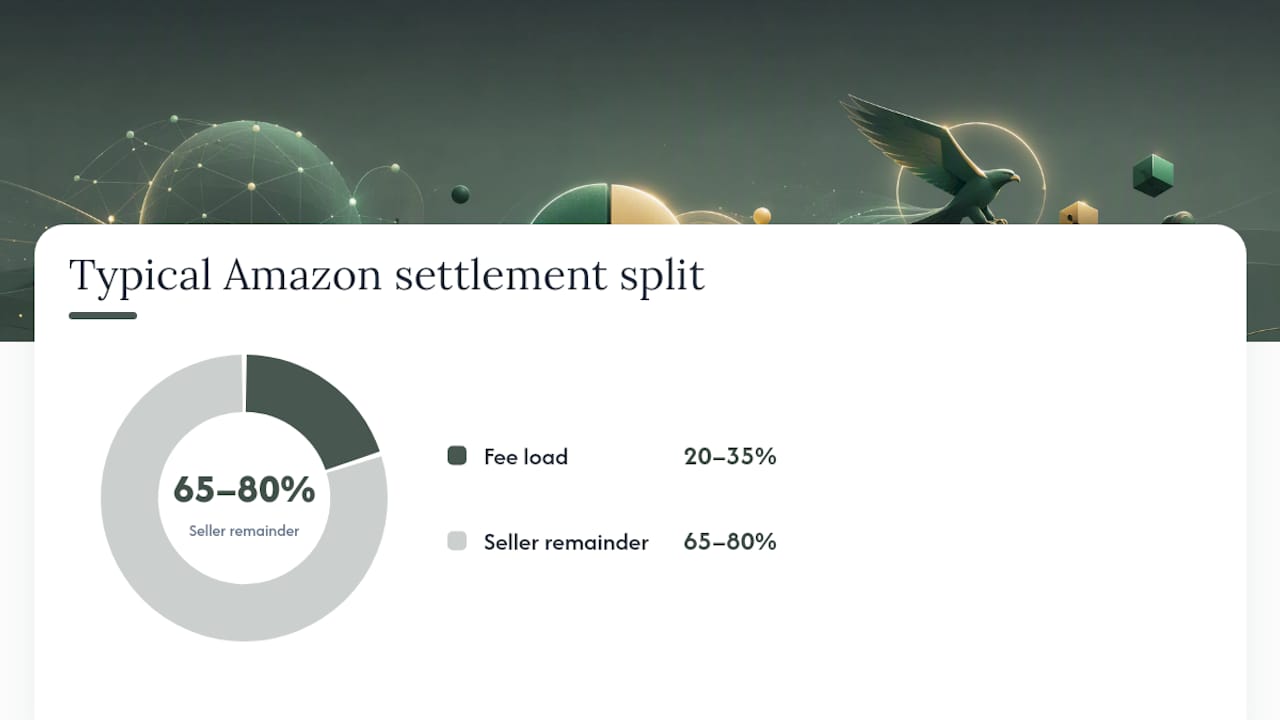
Inside a single settlement, you’ll typically find gross product sales, referral fees, FBA fulfillment fees, storage charges, refunds, promotional rebates, reimbursements, and reserve balance movements. Growthy’s research on seller bookkeeping found that a settlement report can contain 14 or more distinct fee categories, and sellers who skip line-item mapping tend to either overstate expenses or understate them by lumping unrelated charges together.
You have two practical ways to post a settlement:
- One summary journal entry per settlement. Debit the bank for the net deposit, debit separate expense accounts for each fee category, credit gross sales, and credit or debit reserve changes as a balance-sheet line. This works well for sellers with simple structures and low transaction volume.
- Clearing-account workflow. Post the full settlement detail to an Amazon clearing account first, then transfer only the net deposit to the bank. This keeps every fee, refund, and reimbursement visible in the GL and makes month-end variance analysis much faster, which is why most accountants managing multiple sellers prefer it.
Statistic to remember: fee load on a typical Amazon settlement often runs 20 to 35 percent of gross sales. Booking the net deposit as revenue instead of gross sales minus fees doesn’t just misstate a line item. It can overstate net income and distort your tax liability by a wide margin.
Unified Transaction Reports: Order-Level Revenue and COGS
The unified transaction report is where order-level detail lives, and it’s the only file that lets you recognize revenue on the date a sale actually happened rather than the date Amazon paid you two weeks later.
Expect these fields in a well-formed export:
- Order ID and order date
- ASIN or SKU
- Unit price and quantity
- Fee breakdown per order (referral fee, fulfillment fee, sometimes advertising cost if attributed)
- Refund amount and refund date, tied back to the original order ID
Pull this report and match refunds directly to their original sale rather than treating refunds as a separate, unlinked expense. That link is what lets you calculate accurate SKU-level margin instead of a blended, misleading average across your whole catalog.
This step matters more than most sellers realize. Without order-level cost matching, you can’t tell whether a bestselling product is actually profitable once fulfillment fees and returns are factored in, which is why many sellers find Osellpa’s profit tracking tools invaluable for SKU-level profitability analysis. Combining transaction exports with your unit landed cost produces a real month-by-month profit and loss by SKU, the kind of detail tools built specifically for Amazon profitability tracking rely on to flag which products are quietly losing money.
Fee and Adjustment Reports: Building Your Chart of Accounts
Every fee Amazon charges belongs somewhere specific in your books, and lumping them into one generic “Amazon fees” line is the fastest way to lose visibility into what’s actually eating your margin.
Here’s how the major categories typically map:
- Referral fees: cost of goods sold, since they’re a direct percentage of each sale
- FBA fulfillment fees: cost of goods sold, tied to the specific unit shipped
- Storage fees (standard): operating expense, monthly
- Long-term storage fees: separate operating expense line, tracked apart from standard storage
- Advertising spend: operating expense (marketing), never netted against revenue
- Subscription fee (Professional plan): operating expense, fixed monthly cost
- Reimbursements: other income or an inventory/COGS offset, depending on whether Amazon is compensating you for a lost unit or a fee error
Accounting guides that specialize in Amazon sellers consistently recommend keeping referral and fulfillment fees inside cost of sales rather than treating them as generic overhead, since doing so preserves an accurate gross margin figure you can actually use for pricing decisions.
Pro Tip: Split standard storage fees from long-term storage fees in separate GL accounts, and review the long-term storage line every quarter. It spikes seasonally, usually right after Amazon’s cleanup periods, and if it’s buried inside a general “fees” account you won’t notice the trend until it’s already cost you hundreds of dollars.
Inventory and FBA Reports: Validating Stock and Claiming Reimbursements
Four FBA reports do the heavy lifting here: the inventory reconciliation report, the inbound shipment report, the adjustments report, and the disposition report. Each one answers a different question about where your inventory actually is.
- Pull the inventory reconciliation report monthly to compare what Amazon says it received against what you shipped, unit for unit.
- Check the inbound shipment report when a shipment closes to confirm received quantities match what left your warehouse or manufacturer.
- Review the adjustments report for any unexplained inventory decreases, since these are often the first sign of lost or damaged units Amazon hasn’t reimbursed yet.
- Use the disposition report to see what happened to returned or removed inventory, whether it was resold, disposed of, or damaged in Amazon’s warehouse.
When Amazon shorts a shipment or damages inventory, reimbursements typically post weeks after the actual loss occurred, sometimes longer, which is exactly why continuous monitoring beats a quarterly manual check. In the general ledger, treat a reimbursement as either recovered COGS or other income, but be consistent about which one you pick so your margin trends stay comparable month over month.
Document everything before opening a case with Amazon: screenshot the discrepancy, save the relevant report export, and note the expected versus received quantity. Cases without clear documentation get denied far more often than ones with a paper trail attached.

How to Access and Download Your Amazon Reports
Getting the right file out of Seller Central is mostly a matter of knowing where Amazon buried it.
- For settlement reports, go to Payments, then All Statements. Every settlement period is listed there with a downloadable summary and detail view.
- For transaction-level data, use the Reports menu and look for transaction or order reports; export as CSV whenever that option exists, since PDF exports strip out the line-item detail you need for posting.
- For inventory and FBA reports, navigate to Reports, then Fulfillment, then Inventory, where reconciliation, adjustment, and disposition reports all live under separate tabs.
- For advertising data, check the Advertising console separately since ad spend reports don’t live inside the standard Seller Central reports menu.
- Set a consistent date range for each pull, matched to your accounting period, and export overlapping settlements separately if one straddles a month-end.
- Name files by period, not by download date: something like “2026-03-Settlement-P14” keeps your workpapers sortable and audit-ready a year later.
Manually pulling and mapping these files every month is workable at low volume, but it gets error-prone fast as order counts climb. Automated connectors that pull settlement and transaction data directly and post it to QuickBooks or Xero remove the manual mapping step entirely, which is where most classification errors creep in to begin with.
Monthly Reconciliation Checklist and the Errors That Cost You
A clean monthly close follows the same order every time: pull the files, post revenue at order date, map every fee to its account, post the settlement JE or clearing transfer, reconcile the net deposit to the bank statement, then age any open reserves or pending reimbursements for follow-up next month.
Five errors show up again and again in Amazon books, and every one of them is preventable once you know to look for it.
- Booking the net deposit as revenue. This single mistake understates both revenue and expenses simultaneously and throws off every ratio you calculate afterward.
- Missing the reserve receivable. Amazon holds back a portion of funds as a rolling reserve; if you don’t track it as an asset, it just disappears from your books until it’s released.
- Misclassifying reimbursements. Treating a reimbursement as regular sales revenue instead of recovered COGS distorts your margin and confuses year-over-year comparisons.
- Failing to split overlapping settlements at month-end. When a settlement period crosses the last day of the month, allocate it proportionally instead of dumping the whole thing into whichever month it happened to post.
- Ignoring storage fee spikes. A jump in long-term storage costs usually signals slow-moving inventory, and if it’s buried in a generic fee account, you won’t catch it until the damage is done.
| Close step | What to check | Fix if it’s wrong |
|---|---|---|
| Deposit match | Net settlement equals bank deposit | Trace variance to the settlement statement, not the bank feed |
| Reserve tracking | Reserve balance recorded as receivable | Add a reserve asset account if missing |
| Fee mapping | Each fee type in its own GL account | Reclassify lumped “Amazon fees” entries |
| Reimbursements | Coded as recovered COGS or other income | Pick one method and apply it consistently |
Keep a simple workpaper attached to every month-end close: the settlement summary, the transaction export, a fee mapping sheet, and a one-line note explaining any variance over a set dollar threshold. Future you, or your CPA come tax season, will thank you.
Year-End Tax Reporting: Reconciling Your 1099-K
Your 1099-K reports gross payment volume processed through Amazon, and it almost never matches your actual taxable revenue. The IRS explains this directly in its Form 1099-K guidance: the figure includes sales tax Amazon collected on your behalf, doesn’t subtract refunds, and can include timing differences between when a sale occurred and when it was paid out.
To reconcile it:
- Start with total gross payment volume from the 1099-K.
- Subtract sales tax collected and remitted by Amazon on your behalf.
- Subtract refunds and returns processed during the tax year.
- Adjust for timing: sales made in December but paid out in January (or vice versa) need to land in the correct tax year.
- Compare the reconciled figure to your books’ reported revenue and document any remaining variance.
Hand your CPA the settlement summaries for the year, your transaction-level export, and a short reconciliation memo showing how you got from 1099-K gross volume to reported revenue. IRS Publication 538 covers accounting periods and methods if your CPA needs guidance on timing treatment for inventory and COGS.
BeanHawk in Practice: Automating Recovery and Settlement Posting
Beanhawk runs continuous monitoring against your inbound shipments and FBA ledger events, catching lost or damaged inventory and opening reimbursement claims automatically instead of waiting for a manual monthly review. That timing gap matters: reimbursements often lag the actual loss by weeks, and continuous monitoring catches issues a quarterly check would miss entirely.
On the accounting side, Beanhawk posts settlement data directly into QuickBooks or Xero, mapping fee categories automatically instead of leaving that classification work to a bookkeeper each cycle. The practical outcome is fewer manual entries, cleaner fee mapping across every settlement, and a month-end close that doesn’t hinge on someone remembering how last month’s reimbursements were coded.
Do Marketplace Reports Look the Same in the US and EU?
Report structure changes meaningfully once you sell outside your home marketplace, and treating every region’s export like the US version is a common source of reconciliation errors.
US settlement and transaction reports are generally the most detailed, with granular fee breakdowns and consistent CSV formatting across most report types. EU marketplaces introduce VAT line items that don’t exist in US reports at all, since Amazon collects and remits VAT differently depending on where the buyer and seller are located and whether you’re enrolled in Amazon’s VAT calculation service. That means an EU settlement report will show VAT collected and VAT remitted as separate lines you need to map into their own accounts, something a US-only chart of accounts simply doesn’t have room for.
Currency is another wrinkle. If you sell in multiple EU marketplaces (Germany, France, Italy, Spain), Amazon may consolidate multiple currencies into one settlement, and the report will show a currency conversion line item you need to reconcile against the actual exchange rate applied. Report availability windows can also differ slightly by marketplace, and some EU reports are only available through Seller Central’s EU-specific interface rather than the unified US dashboard.
If you sell across marketplaces, don’t assume one chart of accounts fits every region. Build separate GL mapping for VAT-inclusive marketplaces from the start, rather than retrofitting it after your first EU tax filing surfaces the gap.
What Actually Matters in Amazon Accounting
Most guides to Amazon reports treat every report as equally important, which is exactly backward. The settlement report and transaction export do 80 percent of the accounting work; fee and inventory reports fill in the remaining detail. If you’re short on time, master those two files first and treat everything else as refinement.
The conventional advice to “reconcile monthly” undersells the real risk. Reserve balances, pending reimbursements, and split settlements at month-end are where most errors actually live, not in the basic deposit-matching step everyone already does. Sellers who treat reconciliation as a single line item, matching deposit to bank, miss the receivable sitting in Amazon’s reserve and the reimbursement that never got booked.
My honest read: manual reconciliation is fine at low order volume, but it stops scaling the moment you’re managing multiple SKUs across more than one marketplace. At that point, the cost of a missed reimbursement or a misclassified fee usually exceeds what automation would have cost you. Prioritize getting your fee mapping right before you worry about anything else. Everything downstream, taxes, margin analysis, valuation, depends on that foundation being accurate.
, Tim
Run a Free Audit Before Your Next Close
Beanhawk gives you something a manual monthly review can’t: continuous visibility into every lost, damaged, or under-reimbursed unit the moment it happens, not weeks later when you finally get around to checking. A free audit reviews your account and hands you a list of potential unrecovered reimbursements along with an estimate of what’s actually recoverable, no commitment required.
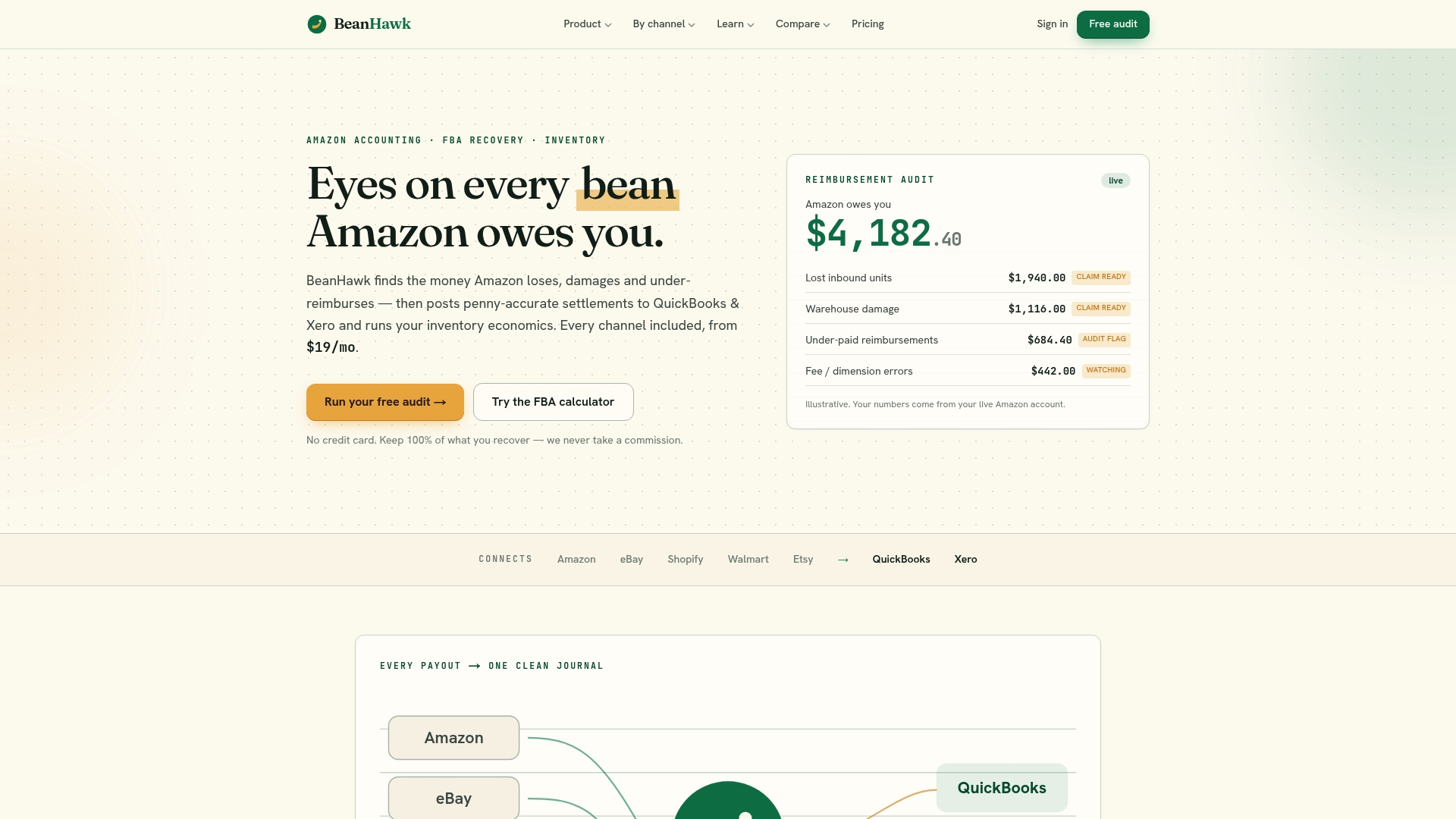
That audit alone often surfaces money sellers assumed was gone for good. And because Beanhawk posts settlements directly into QuickBooks or Xero once you’re set up, the same system that recovers your funds also keeps your books accurate without a bookkeeper manually re-mapping fee categories every cycle. If you want to see what’s sitting unclaimed in your account right now, start by reviewing how Amazon reimburses lost or damaged inventory and request your free audit from there.
Sources
- 6 Amazon Accounting Problems for Sellers & Accountants | Webgility
- Settlement Report Guide | Growthy
- About Form 1099-K | IRS
- Amazon Settlements vs Deposits: Reconcile to Bank Deposits (2026) | Ledgify
- The Seller Reports , SKU-level profitability for Amazon sellers
FAQ
Where can I find reports on Amazon?
Settlement reports live under Payments, then All Statements, in Seller Central. Transaction, inventory, and fulfillment reports are under the main Reports menu, with advertising data housed separately in the Advertising console.
Which accounting software works best with Amazon reports?
QuickBooks Online and Xero are the two platforms most Amazon sellers use, largely because both support direct settlement import and automated fee mapping through connectors built specifically for Amazon accounting.
Is FBA still profitable in 2026?
FBA profitability depends heavily on fee load, which commonly runs 20 to 35 percent of gross sales, and on how tightly a seller tracks reimbursements and storage costs. Sellers who map fees accurately and recover owed reimbursements tend to protect margin better than those relying on net deposit totals alone.
What is the best accounting software for Amazon sellers?
The best choice supports direct settlement and transaction imports rather than manual CSV uploads, since manual entry is where most classification errors originate. Beanhawk’s automated posting into QuickBooks or Xero handles that mapping automatically alongside reimbursement recovery.
How do I reconcile my 1099-K to my actual revenue?
Start with the gross payment volume shown on your 1099-K, then subtract sales tax collected, subtract refunds, and adjust for orders that straddle the tax year boundary. The result should match your reported revenue for the year, with any remaining gap documented for your CPA.