
Amazon Cost of Goods in QuickBooks: The Seller’s Guide

Getting your cost of goods into QuickBooks as an Amazon seller comes down to one core move: calculate the landed unit cost for every SKU (supplier price plus inbound freight, duties, and prep), then post a COGS entry in QuickBooks each settlement period or at the point of sale. That’s the whole job. Everything else is execution.
Here’s what you need in place before you start:
- Identify your accounts in QuickBooks: Inventory Asset (balance sheet), Cost of Goods Sold (expense), and a Purchase/Inventory Clearing account.
- Choose your recognition timing: per Amazon settlement (every two weeks) or per individual sale. Most sellers use settlement-period posting for simplicity.
- Prepare a journal-entry template or connect an integration that maps Inventory Asset to COGS automatically.
- Pull your settlement report from Amazon Seller Central to get units sold, gross revenue, fees, and reimbursements for the period.
Valuation datasets show that inventory load as a share of annual sales varies dramatically by turn rate, which means the timing of your COGS recognition directly affects your reported margins and, ultimately, your business valuation. Get the timing wrong and your P&L tells a story that doesn’t match reality. Beanhawk automates the settlement-posting step and handles reimbursement recovery so the numbers flowing into QuickBooks are already reconciled.
Key Takeaways
Accurate Amazon COGS in QuickBooks requires landed-cost tracking at the batch level, settlement-period recognition timing, and a reconciliation routine that catches discrepancies before they compound.
| Point | Details |
|---|---|
| Use landed cost, not invoice cost | Unit COGS = supplier cost + freight + duties + prep, divided by sellable units received in that batch. |
| Recognize COGS when units sell | Post COGS per settlement period using units sold from the settlement report, not when you paid the freight invoice. |
| Keep Amazon fees out of COGS | Referral fees, FBA fees, and ad spend belong in selling expenses, not Cost of Goods Sold. |
| Reconcile every settlement | Match units sold to inventory decrements, verify per-unit cost applied, and log reimbursements and returns separately. |
| Beanhawk automates the posting | Beanhawk maps Inventory Asset to COGS in QuickBooks, posts per-settlement entries, and monitors ledger events for reimbursable discrepancies. |
Table of Contents
- Why does accurate COGS matter so much for Amazon sellers?
- What counts as Amazon COGS and what doesn’t?
- How do you calculate COGS and post it to QuickBooks step by step?
- How do you set up QuickBooks specifically for Amazon COGS?
- What should you check when QuickBooks and Amazon COGS don’t match?
- How do you handle FBA reimbursements and lost or damaged inventory?
- Sample journal entries and a numeric walkthrough
- Manual posting vs. automated settlement posting: which is right for you?
- A practitioner’s perspective on Amazon COGS and QuickBooks
- Beanhawk handles the posting and recovery work for you
- Sources
Why does accurate COGS matter so much for Amazon sellers?
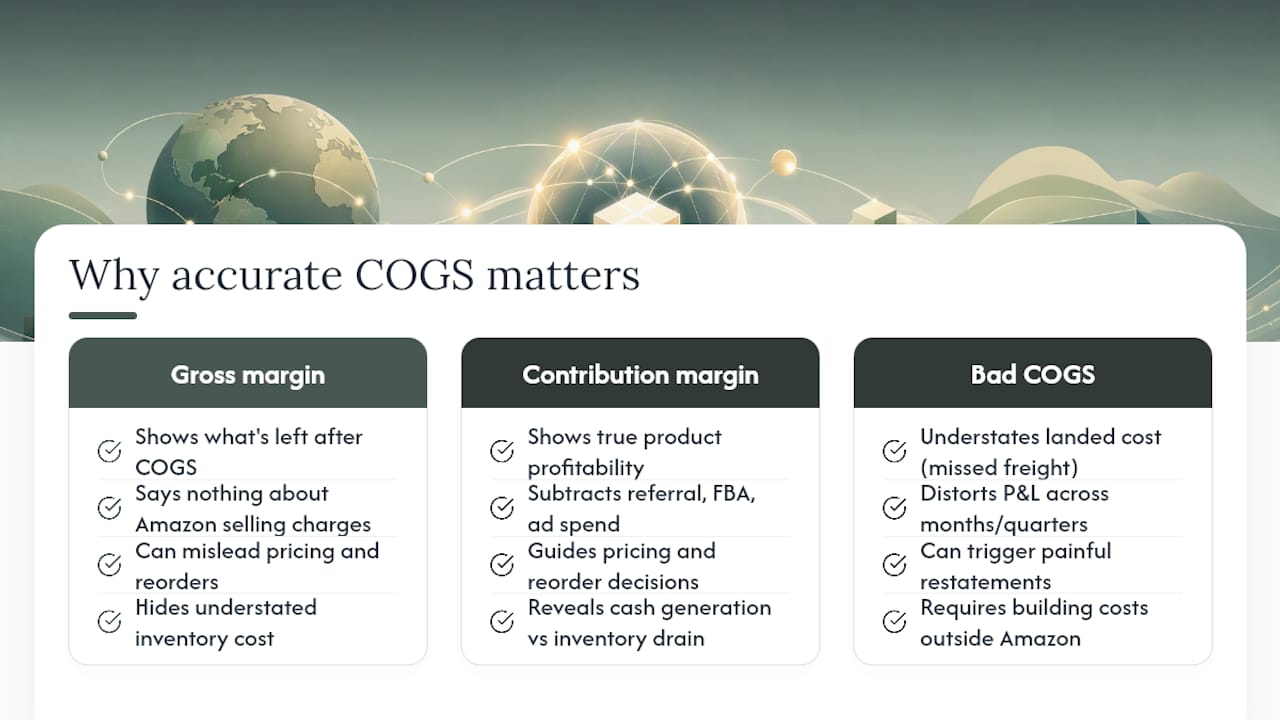
Most Amazon sellers watch their gross margin number and feel good when it’s high. The problem: gross margin only tells you what’s left after COGS. It says nothing about what Amazon charges you to sell. Contribution margin, which subtracts referral fees, FBA fulfillment fees, and advertising spend from gross profit, is the number that actually tells you whether a product is worth selling. Confusing the two is one of the most expensive mistakes in Amazon accounting.
Bad COGS data creates a cascade of bad decisions. If your landed cost is understated because you forgot to allocate inbound freight to a batch, your gross margin looks better than it is. You reprice too low, reorder too aggressively, and miss the fact that the product is dragging cash into inventory rather than generating it. Inventory load and turn rate directly affect seller discretionary earnings and business valuation, so a seller preparing for acquisition or financing who has been running with misstated COGS will face a painful restatement.
The single most common COGS mistake Amazon sellers make is recognizing freight cost when they pay the invoice rather than when the units sell. A $4,000 freight bill posted as an expense in March, when the units don’t sell until May and June, overstates March expenses and understates May,June COGS. The P&L for all three months is wrong, and the distortion compounds across quarters.
Seller Central does not supply product costs or a true P&L. Amazon gives you revenue and fee data. The cost side is entirely your responsibility to build and maintain outside the platform, which is why a disciplined QuickBooks setup matters.
What counts as Amazon COGS and what doesn’t?
The standard industry term here is landed cost: every dollar you spend to get a unit into sellable condition at an Amazon fulfillment center. The COGS formula is:
Beginning Inventory + Purchases + Freight-In + Direct Inventory Costs − Ending Inventory = COGS
At the unit level: Unit COGS = Total Landed Product Cost ÷ Sellable Units
What belongs in COGS
- Supplier unit cost (the price on your purchase order)
- Inbound ocean or air freight, allocated per unit or per batch
- Customs duties and import taxes
- Customs brokerage and ISF filing fees, allocated per shipment
- Third-party inspection fees at origin
- Unit prep and labeling costs (whether done at a prep center or in-house)
- Domestic freight from port or warehouse to Amazon fulfillment centers
- Per-unit packaging materials that ship with the product
What stays outside COGS
- Amazon referral fees and FBA fulfillment fees (these are selling expenses)
- Sponsored Products and other advertising spend
- Software subscriptions and SaaS tools
- General payroll not directly tied to unit production or prep
- Storage fees (monthly and long-term)
- Non-unit overhead: rent, utilities, general insurance
The boundary matters because mixing Amazon fees into COGS inflates your cost basis and understates gross margin. Keep fees in a separate selling-expense category in QuickBooks.
One more point on per-batch tracking: commodity and freight-price volatility has made landed costs genuinely unpredictable from shipment to shipment. A batch received in January may carry a $1.20 per-unit freight cost; the same SKU received in April might be $1.85. Averaging those costs across all inventory on hand distorts the cost of every unit you sell. Attach landed costs to each receipt batch, not to a running average, and re-cost each new batch when it arrives.
How do you calculate COGS and post it to QuickBooks step by step?
This is the operational playbook, from purchase receipt to QuickBooks journal entry.
The core workflow
- Record the purchase order and receipt. When inventory arrives, log the PO quantity, unit cost, and any known freight or duty charges. Post the inventory receipt to your Purchase/Inventory Clearing account.
- Calculate landed cost per batch. Gather all direct inbound costs for that shipment: freight invoice, customs entry, brokerage fees, inspection, and prep. Divide the total by sellable units received. Add that per-unit landed cost to the supplier unit cost to get your batch COGS rate.
- Assign the batch COGS rate to the SKU in your inventory system. If you use QuickBooks inventory items, update the cost field. If you track inventory outside QuickBooks (a spreadsheet or dedicated inventory tool), record the batch rate there and reference it when posting COGS.
- Pull the Amazon settlement report. At the end of each settlement period, download the report from Seller Central. Separate gross sales, refunds, Amazon fees, reimbursements, and reserves. The settlement report is your reconciliation starting point.
- Calculate COGS for units sold. Multiply units sold in the period by the applicable batch COGS rate. If you sold units from multiple batches at different cost rates, calculate each batch’s contribution separately and sum them.
- Post the COGS journal entry in QuickBooks. Debit Cost of Goods Sold, credit Inventory Asset, for the total COGS amount. Reference the settlement ID in the memo field.
- Reconcile ending inventory. Beginning units + units received − units sold = ending units. Multiply by the applicable cost rate to confirm your Inventory Asset balance matches.
Who does what
Purchasing and operations own landed-cost tracking at the shipment level. Inventory control maps batches to SKUs and maintains unit counts. Accounting posts journal entries or reviews integration-generated entries. A reconciler (you, your bookkeeper, or Beanhawk) runs the weekly and monthly checks.
Timing and cadence
Recognize COGS when the unit sells, not when you paid for freight. For most Amazon sellers, that means posting COGS at the end of each settlement period using the settlement report’s unit-sold count. Run a reconciliation check weekly during active selling periods and close the books monthly. Settlement periods don’t align perfectly with calendar months, so you’ll occasionally need to split a settlement across two accounting periods.
Pro Tip: Set a recurring calendar reminder two days after each settlement closes. That’s when the report is finalized in Seller Central and you have the clean unit-sold count you need to post COGS accurately.
How do you set up QuickBooks specifically for Amazon COGS?
The account structure is the foundation. Get it wrong and every entry downstream is misclassified.
Required accounts
- Inventory Asset (Other Current Asset on the balance sheet): holds the cost of all inventory on hand.
- Cost of Goods Sold (COGS expense): where recognized cost moves when units sell.
- Purchase/Inventory Clearing (Current Liability or Other Current Asset): a transit account that holds inventory costs between the time you pay a supplier and the time you receive and value the goods.
- Landed Cost Clearing (optional but recommended): a separate clearing account for freight, duties, and prep costs before they’re allocated to inventory batches.
QuickBooks Online vs. QuickBooks Desktop
In QuickBooks Online, go to Settings → Account and Settings → Sales and turn on inventory tracking. Use the Inventory Part item type for products you track by quantity. QBO calculates average cost automatically when you use inventory items correctly, but it uses a perpetual average-cost method, not FIFO or specific identification. If you need batch-level COGS rates (which most multi-SKU Amazon sellers do), you’ll need to track batch costs outside QBO and post manual COGS adjustments to override the average.
QuickBooks Desktop (Pro, Premier, or Enterprise) gives you more inventory flexibility, including FIFO costing in Enterprise. For sellers with high SKU counts and complex landed costs, Desktop’s inventory center is more granular. The QuickBooks bookkeeping workflow for Amazon sellers typically involves setting up inventory items in Desktop and using purchase orders to receive inventory, which automatically debits Inventory Asset.
Common setup mistakes
- Using non-inventory items for products you actually track by quantity. Non-inventory items expense the cost immediately rather than capitalizing it to Inventory Asset.
- Posting inventory purchases directly to COGS. This bypasses Inventory Asset entirely and makes your balance sheet wrong.
- Mapping Amazon payouts as a single lump-sum deposit. The payout nets fees, refunds, and reimbursements together. Post each component to its own account.
For a deeper look at whether QuickBooks fits your specific Amazon operation, this breakdown of QuickBooks for Amazon sellers covers the trade-offs honestly.
What should you check when QuickBooks and Amazon COGS don’t match?
Discrepancies between your QuickBooks COGS and what you’d expect from Amazon data are almost always traceable to one of five root causes. Work through this checklist before assuming the numbers are simply wrong.
Reconciliation checklist:
- Verify that the settlement payout in QuickBooks matches the bank deposit exactly. A rounding difference here cascades into every downstream figure.
- Reconcile units shipped (per Amazon’s inventory ledger) against units recorded as sold in QuickBooks. A unit that Amazon shows as shipped but your books show as still in inventory means COGS is understated.
- Compare the per-unit landed cost applied in QuickBooks against the purchase batch records. If you updated a cost rate mid-period, check whether the old rate was applied to some sales and the new rate to others.
- Check for unrecorded reimbursements. Amazon sometimes reimburses lost or damaged units during a settlement period. If that reimbursement isn’t posted, your net COGS is overstated relative to your net revenue.
- Confirm that removal orders and customer returns are recorded. A returned unit that goes back into sellable inventory should reverse the COGS entry for that unit.
The most reliable reconciliation anchor is the Amazon inventory ledger event report, not the settlement report alone. The ledger shows every unit movement: received, sold, returned, removed, lost, and damaged. Cross-referencing ledger events against your QuickBooks inventory quantities catches discrepancies that the settlement report, which only shows financial transactions, will miss entirely.
Common root causes and fixes
Freight timing errors: Freight posted as an expense rather than capitalized to inventory. Fix: reverse the expense entry, debit Inventory Asset, and re-allocate to the affected batch.
Amazon fees mixed into COGS: Referral fees or FBA fees posted to the COGS account. Fix: reclassify to a selling-expense account. This is a known P&L distortion that inflates apparent COGS and understates gross margin.
Multi-channel allocation errors: If you sell on Amazon, your own website, and wholesale, you need to allocate COGS to each channel based on units sold there, not total units sold. A single COGS pool posted entirely to Amazon overstates Amazon’s cost and understates other channels.
Wrong inventory item type in QuickBooks: Non-inventory items expense cost immediately. Switching an item type mid-year requires a journal entry to move the incorrectly expensed costs back to Inventory Asset.
Pro Tip: Keep a variance-tracking spreadsheet with columns for settlement ID, expected COGS (units sold × batch cost rate), posted COGS in QuickBooks, and the variance. A variance under $5 is usually rounding. Anything larger needs a root-cause note before you close the month.
How do you handle FBA reimbursements and lost or damaged inventory?
Amazon loses and damages inventory regularly. The reimbursement process is real, but it requires you to find the discrepancy, file the claim, and then record the recovery correctly in QuickBooks. Most sellers leave money on the table here because they don’t monitor ledger events continuously.
The detection and claim workflow
- Pull the FBA inventory ledger event report from Seller Central. Look for units marked as lost, damaged, or disposed that don’t have a corresponding reimbursement.
- Cross-reference with your inbound shipment records. A unit that was received by Amazon but never entered sellable inventory is a candidate for a reimbursement claim. Validate with your shipment confirmation and box-count records.
- File the reimbursement case in Seller Central under the relevant case type (lost inbound, warehouse damage, customer return not received, etc.). Attach supporting documentation: the shipment ID, tracking, and unit count.
- Track the case to resolution. Amazon may reimburse in cash or in replacement units. Note which settlement the reimbursement appears in.
- Post the recovery in QuickBooks. Keep reimbursements separate from product revenue. Record cash reimbursements as Other Income (or a dedicated Reimbursement Income account). If Amazon replaces units, debit Inventory Asset and credit the reimbursement income account. Adjust your COGS accordingly: if you already expensed the cost of the lost unit, the reimbursement offsets that cost.
Recording rules
Reimbursements are not product revenue. Mixing them into your sales account overstates revenue and distorts your average selling price metrics. A dedicated account, something like “Amazon FBA Reimbursements,” makes it easy to see total recovery amounts separately and to track what Amazon owes you versus what you’ve actually collected.
Pro Tip: The evidence that resolves reimbursement cases fastest is a combination of the shipment ID, the carrier’s proof of delivery to the Amazon facility, and a unit-level discrepancy report from the inventory ledger. Sellers who keep these three documents organized by shipment close cases significantly faster than those who reconstruct documentation after the fact.
Beanhawk monitors inbound shipments and FBA ledger events continuously, flags discrepancies automatically, and posts recovered amounts to QuickBooks as reconciled entries, so you’re not manually hunting through ledger reports every two weeks.
Sample journal entries and a numeric walkthrough
Here’s how the full flow looks with actual numbers. Assume a single SKU, one batch received, and one settlement period.
Batch details:
- Units received: 200
- Supplier cost: $8.00/unit → $1,600 total
- Inbound freight: $240 (allocated to this batch)
- Customs duties: $80
- Prep center fees: $40
- Total landed cost: $1,960
- Per-unit COGS rate: $1,960 ÷ 200 = $9.80
Settlement period:
- Beginning inventory: 200 units at $9.80 = $1,960
- Units sold: 75
- Ending inventory: 125 units at $9.80 = $1,225
- COGS for period: 75 × $9.80 = $735
The operational approach is to start with beginning inventory at landed cost, add each receipt including direct inbound costs, identify units sold, assign costs consistently, and reconcile ending inventory. Every journal entry should reference the settlement ID or shipment ID in the memo field. That single habit makes audits and reimbursement disputes dramatically easier to resolve.
For audit-trail discipline: tag every COGS entry with the settlement ID, every inventory receipt with the PO and shipment number, and every reimbursement entry with the Amazon case number. An accountant or auditor can then trace any entry back to a Seller Central report in under two minutes.
Manual posting vs. automated settlement posting: which is right for you?
The honest answer is that manual journal entries work fine up to a point, and then they become the bottleneck. Here’s how to think about the threshold.
| Factor | Manual Journal Entries | Automated Integration |
|---|---|---|
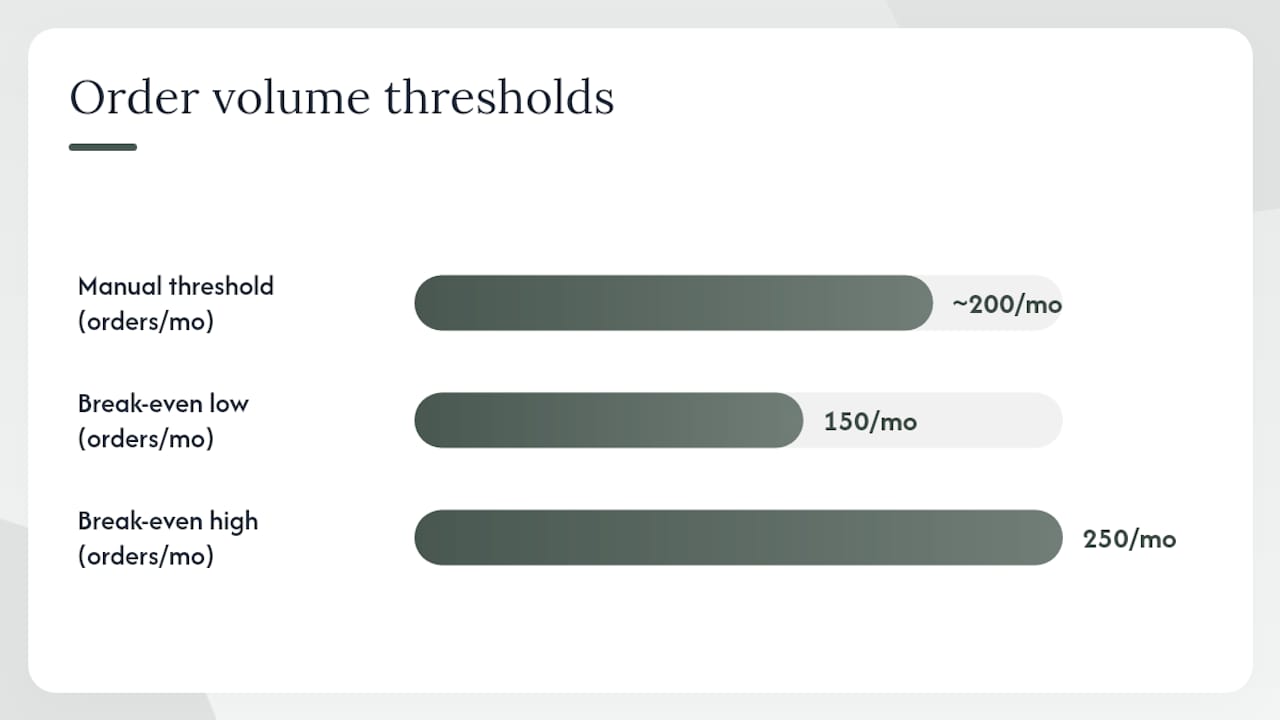
| Monthly order volume | Under ~200 orders/month | 200+ orders/month |
| SKU count | Under 20 SKUs | 20+ SKUs or frequent new launches |
| Settlement complexity | Single channel, simple fee structure | Multi-channel, FBA + FBM, multiple fee types |
| Error surface | High: manual data entry, formula errors | Lower: consistent mapping, but mapping errors still occur |
| Bookkeeping time per settlement | 3,6 hours | 30,60 minutes review |
| Monthly cost | Bookkeeper time only | Integration subscription + reduced bookkeeper time |
| Account mapping control | Full manual control | Configured once, requires periodic review |
| Reimbursement detection | Manual ledger review | Automated monitoring (with tools like Beanhawk) |
COGS integrations calculate per-settlement landed cost and post categorized entries into accounting systems, but mappings and review are still required. Automation doesn’t eliminate the need for human judgment; it eliminates the repetitive data entry that makes human judgment expensive.
The break-even point for most sellers is somewhere around 150,250 orders per month or 15,25 active SKUs. Below that, a well-organized manual process with a clear journal-entry template costs less than a monthly integration subscription. Above it, the bookkeeping time saved typically exceeds the subscription cost within the first month.
What to verify in any automated setup: confirm that cost-price data is loaded correctly for every SKU before the first settlement posts, check that account mappings point to the right QuickBooks accounts (Inventory Asset, not an expense account), and review the first two or three automated entries manually before trusting the system. Financial reporting best practices for QuickBooks teams consistently emphasize that the first month of any new integration is the highest-risk period for mapping errors.
A practitioner’s perspective on Amazon COGS and QuickBooks
The sellers who get this right share one habit: they treat landed cost as a per-batch discipline, not an annual average. Every time a new shipment arrives, someone on the team calculates the landed cost for that batch before the units go live for sale. It takes 15 minutes with a simple spreadsheet. The sellers who skip this step and use a running average are always surprised when their margins shift unexpectedly, usually because freight rates moved and they didn’t update their cost basis.
The second thing that separates clean books from messy ones is close cadence. Monthly closes are the minimum. Weekly reconciliation checks, even a quick 20-minute review of units sold versus COGS posted, catch errors while the settlement data is still fresh and before they compound into the next period.
On automation: the instinct to automate everything immediately is understandable but often counterproductive. Automate the settlement posting first, because that’s where the volume is. Keep the landed-cost calculation manual or semi-manual until you have enough shipment history to trust your cost-data inputs. An automated system posting wrong cost rates is worse than a manual system posting correct ones slowly.
For reimbursements, the documentation habit is everything. A seller who keeps shipment confirmations, carrier PODs, and unit-count records organized by shipment ID will recover significantly more from Amazon than one who reconstructs documentation after a discrepancy is already 90 days old. Amazon’s claim windows are real, and evidence quality determines outcomes.
Beanhawk handles the posting and recovery work for you
Accurate COGS in QuickBooks requires two things most sellers underestimate: clean cost-price data loaded before settlement posts, and continuous monitoring of FBA ledger events to catch reimbursable discrepancies. Doing both manually at scale is where sellers lose hours every month.
Beanhawk automates settlement posting directly into QuickBooks, monitors every inbound shipment and ledger event for discrepancies, and files reimbursement claims on your behalf without commissions or hidden fees. The integration maps Inventory Asset and COGS accounts to your existing QuickBooks chart of accounts, posts reconciled entries per settlement, and flags any variance that needs your attention. Multi-channel sellers get a single reconciliation view across Amazon and other platforms.
Getting started begins with a free audit: Beanhawk reviews your recent settlements, checks your current account mappings, and identifies any open reimbursement opportunities before you commit to a subscription. Most sellers find recoverable amounts in the first audit that more than cover the first month’s cost. Start with the FBA bookkeeping guide to see what the setup looks like, or go directly to Beanhawk to request your free audit.
Sources
- How to Track COGS for Amazon FBA: Make the Cost Follow the Unit, Not the Invoice - The FBA Guys
- The Amazon Seller P&L: How to Build One That Tells the Truth (and the COGS Mistakes That Distort It) - Blog | sellerboard
- Amazon FBA Accounting Best Practices: Settlement Reports, COGS, Fees, And Taxes - CPA Tax Accounting And Bookkeeping Firm Toronto
- Pages
- Raw material commodity prices continue rising amid stronger demand - World Bank Blogs
This article is general information, not a substitute for advice from a qualified financial advisor. Consult a qualified financial professional about your own circumstances before acting on anything here.