
Amazon Inventory Ledger for FBA Sellers: Reconcile & Recover

The Amazon Inventory Ledger is your FBA bank statement: it shows a starting balance, every inventory event that occurred during a date range, and the resulting ending balance. Per Amazon’s own Seller Central documentation, it consolidates receipts, customer orders, returns, adjustments, reconciliation events, and removals into one report. Your next action: open Reports > Fulfillment > Inventory Ledger, pull the Detailed view for any period you need to investigate, and download the CSV. Archive it locally. Amazon only retains 18 months of history in the UI, so anything older than that disappears unless you saved it yourself.
Use the Summary view for quick trend checks and period-over-period comparisons. Use the Detailed view whenever you are investigating a discrepancy, building a reimbursement claim, or closing the books for the month.
Pro Tip: Set a recurring calendar reminder on the last business day of each month to export and archive both Summary and Detailed CSVs. Label files with the format YYYY-MM_InventoryLedger_Detailed_FNSKU.csv so you can find them fast during an audit.
Key takeaways
The Amazon Inventory Ledger is the definitive source of truth for FBA period reconciliation: export and archive the Detailed view monthly, monitor adjustment reason codes actively, and automate where possible to avoid missing reimbursements.
| Point | Details |
|---|---|
| Export and archive monthly | Amazon retains only 18 months of ledger history; local CSVs are your only backup beyond that window. |
| Use Detailed view for investigations | Summary view shows net period totals; Detailed view logs every event with timestamp and FC code. |
| Monitor adjustment reason codes | Codes for lost or missing units are the primary source of reimbursement opportunities in the ledger. |
| Reconcile to settlements monthly | Tie ledger event totals to your Amazon settlement and QuickBooks or Xero postings at each period close. |
| Beanhawk automates recovery | Beanhawk monitors ledger events continuously and files reimbursement claims without hidden fees or commissions. |
Table of Contents
- What the inventory ledger shows: event types, key columns, and how to read them
- How to run, filter, and export the ledger in Seller Central
- Which legacy reports the ledger replaced, and why that matters
- Reconciliation checklist: tying the ledger to your accounting and settlements
- Automating ledger monitoring and recovering reimbursements
- Common problems, limitations, and when to escalate
- The ledger is an accounting document, not a dashboard
- Beanhawk recovers what manual reconciliation misses
- Sources
- FAQ
What the inventory ledger shows: event types, key columns, and how to read them
The ledger is not a live dashboard. Think of it as a period reconstruction: it answers “what happened to my inventory between date A and date B?” rather than “what do I have right now?” That distinction matters when you are deciding which Amazon report to pull. The Manage FBA Inventory report shows your current on-hand position; the Inventory Ledger reconstructs movements over a period for reconciliation and accounting.
Core event categories
- Starting warehouse balance: Units on hand at the fulfillment center at the start of your selected date range.
- Receipts: Units received from inbound shipments. Each receipt ties to a shipment ID.
- Customer orders (shipments): Units shipped to buyers. These reduce your balance.
- Customer returns: Units returned by buyers. Condition (sellable vs. unsellable) matters here.
- Adjustments: Inventory corrections with reason codes. This is where lost, found, damaged, and transferred units appear.
- Reconciliation events: Amazon’s own corrections when its system count diverges from the expected balance.
- Removals: Units pulled from FBA via removal orders or disposal.
- Ending warehouse balance: Units remaining at the fulfillment center at the close of the period.
Key columns in the CSV export
| Column | Definition | Why it matters for reconciliation |
|---|---|---|
| FNSKU | Amazon’s fulfillment network SKU | Ties events to a specific physical unit type |
| ASIN / SKU | Product and seller identifiers | Cross-reference with your catalog |
| Fulfillment center code | The FC where the event occurred | Isolates FC-transfer discrepancies |
| Event date | Timestamp of the inventory event | Sequences events chronologically |
| Event type | Category (receipt, order, return, etc.) | Drives which accounting entry to post |
| Quantity change | Units added (+) or removed (−) | The number you reconcile against |
| Disposition | Sellable, unsellable, or in-transit | Affects reimbursement eligibility |
| Reason code | Sub-type of adjustment event | Identifies lost, damaged, found, or transferred units |
| Starting / ending balance | Balance before and after the event | Validates your running total |
Adjustment reason codes are the most reimbursement-relevant column in the file. Codes indicating missing items, found items, or transfer corrections are the entries most commonly linked to money Amazon owes you. Cross-reference them against your reimbursement reports before closing any period.
Pro Tip: In Excel or Google Sheets, add a pivot table grouped by Event Type and Reason Code after importing the CSV. It surfaces adjustment patterns in seconds rather than minutes of manual scrolling.
How to run, filter, and export the ledger in Seller Central
- Log in to Seller Central and go to Reports > Fulfillment.
- Under the Inventory section, select Inventory Ledger.
- Choose Summary or Detailed from the view toggle at the top of the report page.
- Set your date range. For month-end close, use the first and last day of the calendar month.
- Enter a product identifier (FNSKU, ASIN, or seller SKU) to scope the report to a single product, or leave blank to pull all SKUs.
- Use the Aggregate by location toggle if you want to see FC-level breakdowns in the Summary view.
- Click Generate report, then Download once it is ready. Save the file with a descriptive name that includes the date range and view type.
Filters and workarounds worth knowing
- The disposition filter lets you separate sellable from unsellable units, which is useful when reconciling returns.
- The UI currently lacks a filter for adjustment reason groups, meaning you cannot narrow the export to, say, “lost” adjustments only. You have to download the full file and filter in a spreadsheet. Seller forum discussions confirm this is a known gap, and API access may lag UI feature parity, which complicates automated workflows.
- For inbound shipment verification, filter by Event Type = Receipt and match shipment IDs against your shipping plan.
The 18-month retention window is a hard limit. Amazon does not archive older data on your behalf. If you need records for a multi-year accounting review or a dispute that stretches back further, your only option is a locally archived CSV you exported before the window closed. Build the export habit now, not after the data is gone.
Pro Tip: If you use the SP-API to pull ledger data programmatically, verify that the API endpoint returns the same fields as the UI export before relying on it for reconciliation. Field parity is not always guaranteed.
Which legacy reports the ledger replaced, and why that matters
Amazon’s official documentation confirms the Inventory Ledger is updated daily and replaced six older reports:
- Daily Inventory History
- Monthly Inventory History
- Inventory Event Detail
- Inventory Adjustments
- Inventory Reconciliation
- Received Inventory
Before consolidation, sellers had to pull multiple reports and manually stitch them together to reconstruct a period’s inventory movements. The Inventory Event Detail covered individual transactions; the Inventory Reconciliation report showed period math; the Received Inventory report tracked inbound check-ins. Each lived in a different part of Seller Central and used slightly different field names.
The ledger collapses all of that into one export. The practical implication: if your reconciliation process still references any of those six reports, you can retire them. The ledger contains the same underlying data, structured more consistently.
If you have locally archived copies of the legacy reports from before their deprecation, keep them. For any dispute or audit covering periods before the ledger’s rollout, those older CSVs may be the only evidence you have. Do not delete them just because the new report is live.
For sellers who need to understand how inbound check-in timing affects what shows up as a receipt in the ledger, FBA check-in best practices explain how Amazon processes inbound shipments and why there can be a lag between physical arrival and the ledger receipt event.
Reconciliation checklist: tying the ledger to your accounting and settlements
This is the core workflow for month-end close. Follow it in order.
- Export the Detailed view for the full calendar month. Download the Summary view as a secondary check.
- Verify the beginning balance. The starting warehouse balance in the ledger should match the ending balance from the prior month’s export. If it does not, investigate before proceeding.
- Match receipts to shipment IDs. Filter Event Type = Receipt and cross-reference each shipment ID against your shipping plan and carrier tracking. Flag any shipment where the received quantity differs from what you sent.
- Match sales to settlement reports. Filter Event Type = Customer Order and compare total units shipped against the units reported in your settlement. Timing differences of one to two days around period boundaries are normal; larger gaps are not.
- Account for returns and condition changes. Filter Event Type = Customer Return. Separate sellable returns (which restore your balance) from unsellable ones (which do not). Unsellable returns that lack a corresponding reimbursement are candidates for a claim.
- Validate adjustments and reason codes. This is the step most sellers skip. Filter Event Type = Adjustment and review every reason code. Codes for missing or lost items that have no matching reimbursement represent money left on the table. Collect the adjustment reason code, FC code, timestamp, proof of ownership, and proof of delivery before filing any claim.
- Compute the ending balance. Sum: Starting Balance + Receipts − Customer Orders + Returns + Net Adjustments + Net Reconciliation Events − Removals = Ending Balance. This should match the ending warehouse balance in the ledger. If it does not, you have a data entry or timing error to resolve.
- Reconcile to QuickBooks or Xero. Post each event category as a journal entry. Receipts increase inventory asset; customer orders reduce it and record COGS; adjustments for lost units record a loss. For a detailed walkthrough of posting Amazon settlements to QuickBooks, the process maps directly to the ledger event categories above.
Handling in-transit quantities
The ledger’s Summary view shows warehouse balance only. To align with legacy Inventory Reconciliation math, add in-transit-between-warehouses units to your ending warehouse balance. The formula: Reconciled Ending Balance = Ending Warehouse Balance + In-Transit Between Warehouses. Pull in-transit counts from the Manage FBA Inventory report and add them manually.

Pro Tip: Before filing any reimbursement claim, gather your supplier invoice or packing slip, the carrier tracking confirmation, and the specific Detailed view rows showing the adjustment event. That combination materially increases approval rates compared to filing with ledger data alone.
Common reconciliation mismatches
- FC transfers: Units moving between fulfillment centers appear as a negative adjustment at the source FC and a positive receipt at the destination. They look like disappearances if you filter by only one FC code.
- Processing lags: Inbound shipments can take several days to check in. A receipt event may fall in the next period even if the shipment arrived before month-end.
- Inventory assigned to other accounts: If you manage multiple seller accounts, confirm that the FNSKU in the ledger belongs to the account you are reconciling.
Automating ledger monitoring and recovering reimbursements
Manual reconciliation works, but it has a ceiling. The ledger updates daily, and adjustment events that signal lost or damaged inventory can appear at any time. Checking once a month means you may miss the filing window for older events, or simply overlook a reason code buried in a large CSV.
Continuous monitoring changes that. An automated system watches for adjustment codes tied to missing or damaged inventory, flags inbound receive discrepancies, and alerts you before the reimbursement window closes. The LegalClarity analysis confirms that automation reduces missed reimbursements because it catches adjustment codes and inbound mismatches faster than manual audits.
What automation handles that manual review misses
- Real-time alerts on adjustment reason codes that indicate lost or damaged units
- Automatic matching of inbound shipment quantities against ledger receipt events
- Flagging of unsellable returns with no corresponding reimbursement
- Posting of settlement data directly to QuickBooks or Xero without manual journal entries
- Multi-channel consolidation so ledger data from Amazon does not have to be reconciled separately from other sales channels
Beanhawk monitors FBA ledger events continuously, files reimbursement claims for lost and damaged inventory, and posts settlements to QuickBooks and Xero automatically. There are no hidden fees or commissions. For sellers who want to understand what Amazon actually reimburses and how the recovery process works, that page covers the official rules and where Beanhawk’s monitoring fills the gaps.
Pro Tip: Even if you automate monitoring, keep your own archived CSVs. Automation tools depend on the same 18-month retention window. Your local archive is the safety net if a dispute requires older evidence.
Common problems, limitations, and when to escalate
Missing adjustment reason filters
The UI does not let you filter by reason code group. Download the full Detailed CSV and use a spreadsheet filter on the Reason Code column. Sort by quantity change (most negative first) to surface the largest unexplained losses.
Partial receipts
If the ledger shows fewer units received than you shipped, do not assume Amazon lost them immediately. Check whether the shipment is still in “receiving” status in your shipping plan. Processing can take several business days, especially for large shipments. If the status is closed and the count is still short, that is a valid discrepancy to escalate. FBA check-in best practices outline how to document inbound shipments in a way that supports claims.
FC-to-FC transfers that look like disappearances
Filter the Detailed view by the source FC code and look for adjustment events on the same date. A matching positive event at a different FC code confirms a transfer, not a loss. If no matching positive event appears within five business days, escalate.
Delayed inbound processing
Units can sit in an Amazon receiving queue for days. If a receipt event is missing, check the shipment status in Seller Central before filing a claim. Filing too early wastes a case and can complicate the legitimate claim later.
When to escalate
Escalation template: Open a support case in Seller Central and include: the FNSKU, the date range, the specific Detailed view rows showing the discrepancy (paste the CSV rows directly), the FC code, your shipment ID, proof of delivery (carrier tracking), and proof of ownership (supplier invoice or packing slip). State the expected quantity, the received quantity, and the difference. Request a manual investigation, not an automated reimbursement check.
Loop in a third-party accountant or a recovery tool like Beanhawk when: the discrepancy spans multiple FCs, the adjustment reason codes are ambiguous, the claim has already been denied once, or the total value justifies the time cost of a thorough investigation.
The ledger is an accounting document, not a dashboard
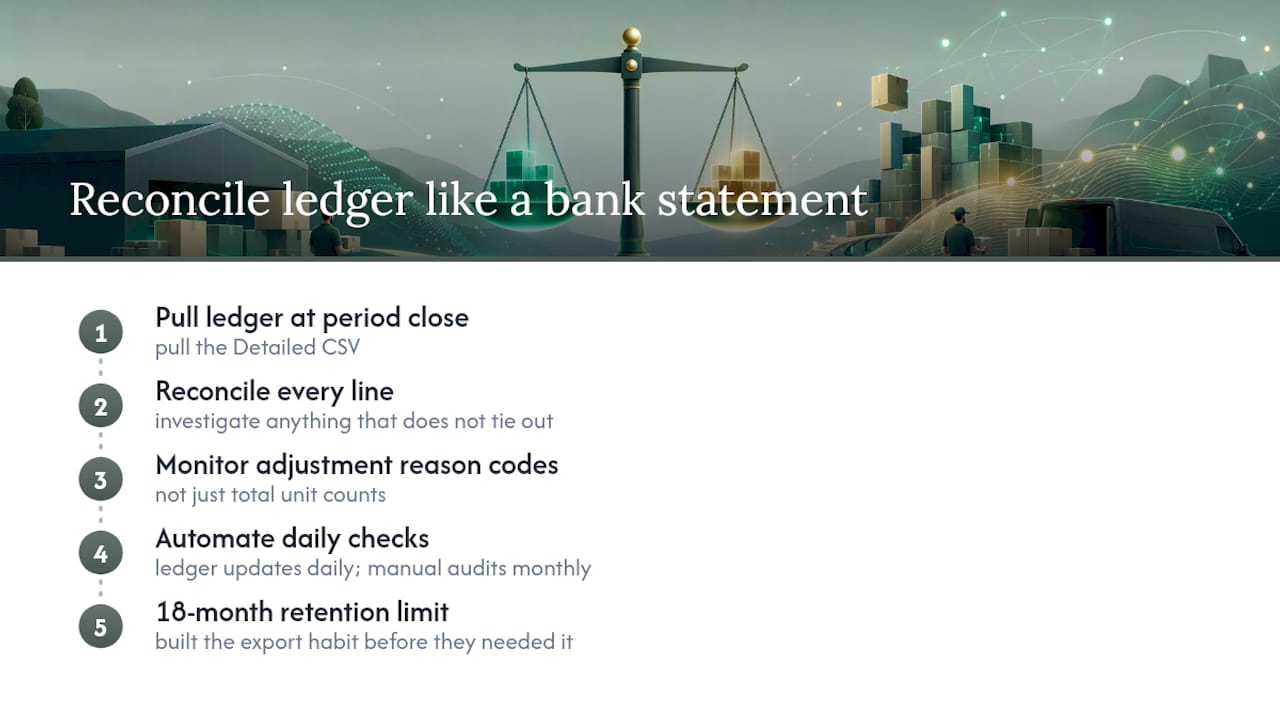
Most sellers treat the Inventory Ledger as an operational tool they check when something goes wrong. That framing costs them money. The sellers who recover the most from Amazon are the ones who treat the ledger the way an accountant treats a bank statement: pull it at period close, reconcile every line, and investigate anything that does not tie out.
The conventional advice is to “monitor your inventory regularly.” That is true but useless without specifics. What actually matters is monitoring adjustment reason codes, not just total unit counts. A seller whose ending balance looks right can still have thousands of dollars in unrecovered losses sitting in adjustment events with reason codes that Amazon’s automatic reimbursement system missed. The balance looks fine; the money is gone.
The other thing most guides understate is the 18-month retention limit. It sounds like a long time until you are in a dispute over a shipment from 14 months ago and realize you never archived that period’s Detailed CSV. The sellers who never hit that wall are the ones who built the export habit before they needed it.
Automation is not a luxury for high-volume sellers. It is the only realistic way to catch adjustment events as they happen rather than discovering them weeks later during a manual review. The ledger updates daily. Manual audits happen monthly, at best. That gap is where reimbursements go unclaimed.
Beanhawk recovers what manual reconciliation misses
Reconciling the ledger manually is possible. Doing it consistently, across every adjustment event, every inbound discrepancy, and every unsellable return, is where most sellers fall short. Beanhawk was built specifically for that gap.
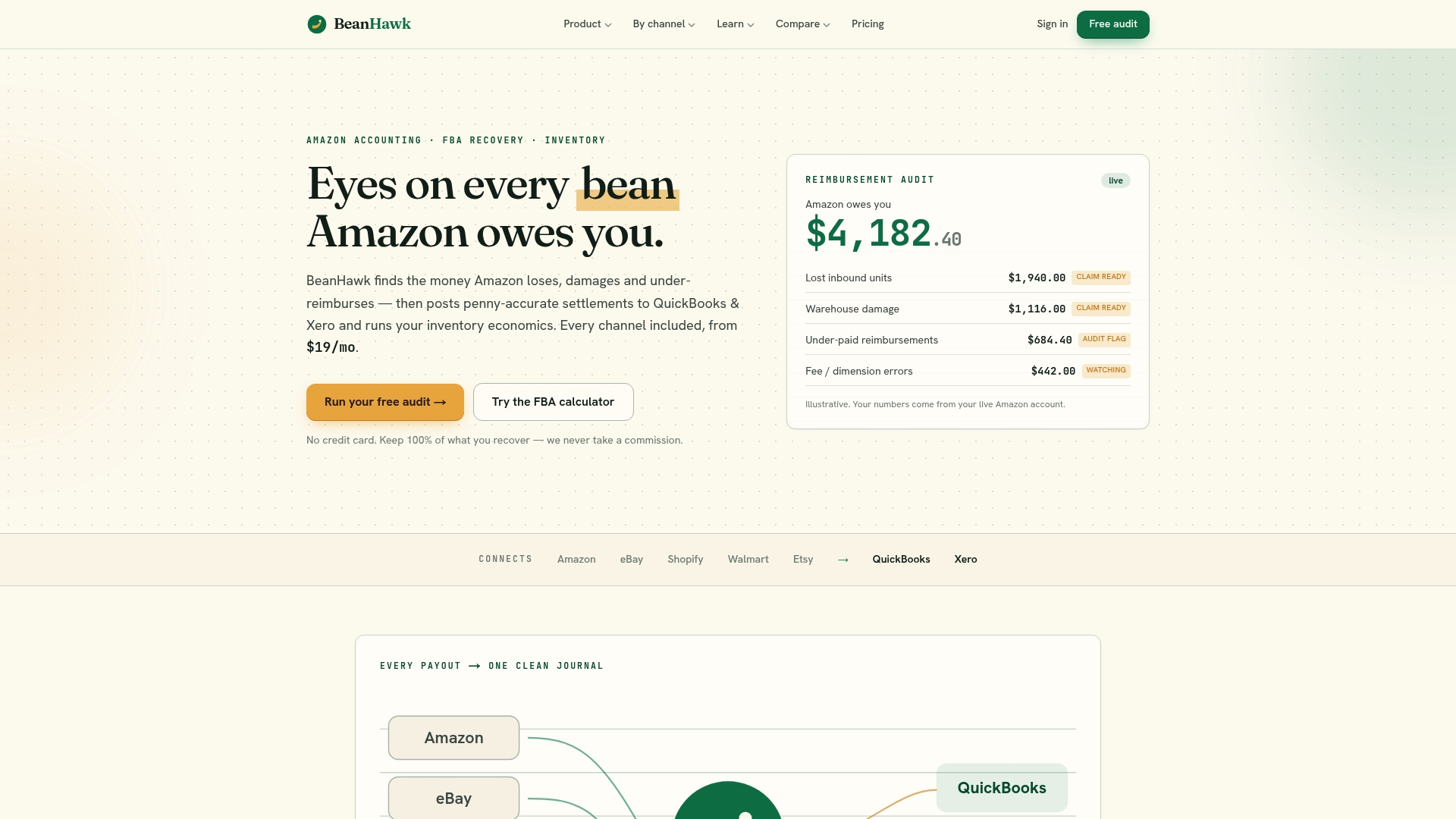
Beanhawk monitors your FBA ledger events continuously, not just at month-end. When an adjustment code signals a lost or damaged unit, Beanhawk flags it, builds the claim, and files it. Settlements post automatically to QuickBooks or Xero, so your books stay current without manual journal entries. There are no commissions taken from your recoveries and no hidden fees.
If you want to see exactly what Amazon owes you before committing to anything, start with Beanhawk’s free FBA reimbursement audit. It maps your ledger events against your reimbursement history and shows you the gaps.
Sources
- Inventory Ledger report: How to find the information that you need
- Amazon Inventory Ledger Report: What It Is and How to Use It - LegalClarity
FAQ
What is an inventory ledger on Amazon?
The Amazon Inventory Ledger is a consolidated FBA report that shows your starting balance, all inventory events (receipts, orders, returns, adjustments, removals), and ending balance for a chosen date range. It is the primary tool for period reconciliation and reimbursement investigation.
How do you get an Amazon ledger statement?
Log in to Seller Central, go to Reports > Fulfillment > Inventory Ledger, set your date range and product filters, and click Download. The export is a CSV file. Amazon retains up to 18 months of history in the UI.
How do you get an Amazon inventory report?
Go to Reports > Fulfillment in Seller Central. The Inventory Ledger covers period movements; the Manage FBA Inventory report shows your current on-hand position. Use the ledger for reconciliation and the Manage FBA Inventory report for live stock checks.
Is FBA still profitable in 2026?
FBA remains profitable for sellers who manage inventory economics tightly, including recovering reimbursements for lost and damaged units. Margin pressure from storage fees and returns makes accurate ledger reconciliation more important, not less, as fees increase.