
QuickBooks Amazon Integration: Setup Guide for FBA Sellers

QuickBooks can integrate with Amazon, and for most FBA sellers the right path is not the free native connector. It is an automated journal-posting solution that decomposes every settlement line, maps reimbursements to the correct accounts, and continuously monitors your FBA ledger for funds Amazon owes but has not yet credited. The native Amazon Marketplace Connector by Intuit works fine at low volume, but once you are running meaningful FBA revenue, its undifferentiated adjustment line will quietly distort your P&L. Beanhawk’s automated posting and reimbursement recovery is the recommended route for sellers where accurate margins and recovered inventory funds actually matter. All guidance below applies to U.S. sellers using QuickBooks Online or QuickBooks Desktop.
Table of Contents
- What are your options for connecting Amazon to QuickBooks?
- How do you set up QuickBooks correctly for Amazon settlements?
- Why does accrual accounting matter, and how do you reconcile monthly?
- What should automation handle for reimbursement recovery and QuickBooks posting?
- How do you test the integration and fix common discrepancies?
- Key Takeaways
- The part most sellers get wrong
- See what Amazon owes you before your next settlement
- Useful sources
What are your options for connecting Amazon to QuickBooks?
Three paths exist, and they are not interchangeable.
Option A: Manual CSV import or manual journal entry. You download the Amazon settlement report, build a journal entry by hand, and post it to QuickBooks. Total subscription cost: zero. Total time cost: significant. This works for a seller doing a handful of orders a month who wants absolute control, but it misses continuous reimbursement monitoring entirely and does not scale.
Option B: Amazon Marketplace Connector by Intuit (native QuickBooks app). The native connector imports individual transactions and creates a single payout with an undifferentiated adjustment line. Setup takes minutes to a few hours. It can pull up to 12 months of history and posts Sales Receipts and Expenses automatically. The catch: referral fees, FBA fees, storage charges, reserves, and reimbursements all land in one “adjustments” bucket that requires manual cleanup. Sellers under roughly $500K GMV may manage with this plus a quarterly cleanup session. Above that threshold, the manual mapping effort becomes more significant.
Option C: Automated journal-posting connectors or full-service automation. These solutions ingest the settlement report and rebuild it into discrete line types: referral fees, FBA fulfillment fees, storage, reserves withheld and released, reimbursements, and refunds. Each line maps to a specific Chart of Accounts code. Setup runs hours to a couple of days. Monthly fees vary by order volume and provider tier. This is the correct path for any FBA seller who needs accurate gross margin reporting, reserve handling, and automated reimbursement recovery.
| Option | Time to implement | Typical monthly cost |
|---|---|---|
| Manual CSV / journal entry | Ongoing (hours per cycle) | zero |
| Native Intuit connector | Minutes to a few hours | zero |
| Automated journal-posting / full-service | Hours to 1,2 days | Varies by tier and order volume |
How do you set up QuickBooks correctly for Amazon settlements?
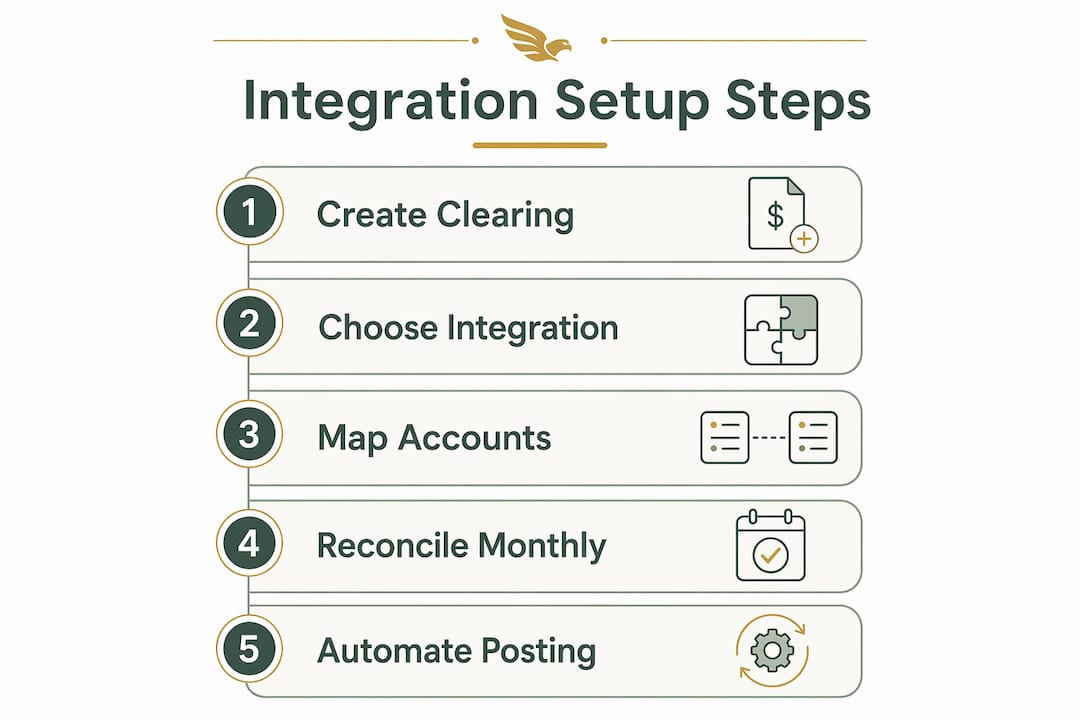
Start with accrual accounting and a dedicated clearing account before you connect anything.
Core account configuration
Create an Amazon Settlement Clearing account (type: Other Current Asset or Bank) in QuickBooks. This account holds gross settlement activity until the net deposit hits your bank feed, at which point you match rather than manually add the deposit. The clearing account prevents you from booking gross revenue incorrectly and keeps fees visible.
QuickBooks Online steps:
- Sign in as company admin, go to Commerce, and select “Connect a sales channel.”
- Choose Amazon, set your import start date (up to 12 months back), and authorize.
- In app settings, select your deposit account and fee payment account.
- Leave “Add transactions automatically” off until you have reviewed one full settlement cycle manually.
- After confirming individual transactions, add the Payout. QuickBooks creates a Deposit that moves the net amount from Undeposited Funds to your bank account. Then use Match in the bank feed, never manually add the deposit.
QuickBooks Desktop: The clearing-account approach is identical. Use the journal import or bank-feed workflow to post the decomposed settlement, then match the net deposit. The interface differs but the logic does not. For a detailed comparison of the two platforms, see QuickBooks Online vs Desktop for sellers.
Account mapping table

| Settlement line | QuickBooks account type | Sample account name |
|---|---|---|
| Product sales | Income | Amazon Product Sales |
| Shipping credit | Income | Amazon Shipping Income |
| Refunds | Contra-income | Amazon Refunds |
| Referral fees | Cost of Goods Sold / Expense | Amazon Referral Fees |
| FBA fulfillment fees | Cost of Goods Sold / Expense | FBA Fulfillment Fees |
| Monthly storage fees | Expense | Amazon Storage Fees |
| Inventory reimbursements | Contra-expense | Inventory Loss / Shrinkage |
| Reserve withheld | Other Current Liability | Amazon Reserve Held |
| Reserve released | Other Current Liability (credit) | Amazon Reserve Released |
Sample settlement journal entry
Settlement period: March 1,14
DR  Amazon Settlement Clearing      $4,200.00
  CR  Amazon Product Sales                       $5,100.00
  CR  Amazon Shipping Income                       $180.00
  DR  Amazon Refunds                  $320.00
  DR  Amazon Referral Fees            $612.00
  DR  FBA Fulfillment Fees            $408.00
  DR  Amazon Storage Fees              $95.00
  CR  Inventory Loss / Shrinkage                    $55.00  (reimbursement)
  DR  Amazon Reserve Held             $200.00
Net deposit to bank:               $3,600.00
Reimbursements for lost or damaged inventory should credit an Inventory Loss / Shrinkage account, not a revenue account. Booking them as sales overstates gross margin and hides warehouse performance problems.
Pro Tip: Name your Amazon income items consistently (e.g., “Amazon-US Product Sales”) so multi-marketplace sellers can filter by channel in reports without rebuilding the Chart of Accounts.
Why does accrual accounting matter, and how do you reconcile monthly?
Record sales by transaction date, not payout date. Amazon pays out every two weeks, so a settlement that straddles month-end will inflate one month and deflate the next if you book by deposit date. Accrual accounting eliminates that distortion and gives you a P&L you can actually make decisions from. For a plain-English explanation of the principle, see what accrual accounting means for sellers.
The single biggest pitfall is deposit-based accounting: booking the net bank deposit as revenue. That one habit hides FBA fees, storage charges, and reimbursements in a single number, making it impossible to trace margin leakage.
Monthly reconciliation checklist:
- Download the settlement report from Seller Central for the period.
- Post the decomposed journal entry (or confirm automated posting) with transaction-date line items.
- Confirm all individual transactions in the Integration Transactions tab before adding the Payout.
- Match the Payout deposit to the bank feed transaction. Do not manually add it.
- Check the Amazon Settlement Clearing account balance. It should be zero after matching. Any residual balance signals a missing or misposted line.
- Verify that reimbursements map to Inventory Loss / Shrinkage, not to income.
- Review reserve withheld and released entries for the period.
- Flag any adjustment lines that landed in an undifferentiated bucket for manual review.
A misposted reimbursement of $200 booked as revenue instead of a shrinkage offset inflates gross margin by the full $200 and makes your COGS look cleaner than it is. Multiply that across a year of settlements and the distortion becomes material. For a deeper walkthrough of the reconciliation steps, reconciling Amazon payouts in QuickBooks covers the full workflow.
What should automation handle for reimbursement recovery and QuickBooks posting?
Good automation does three things: it rebuilds the Amazon settlement into discrete journal lines, maps each line to the correct Chart of Accounts code, and continuously monitors FBA ledger events for items Amazon has not yet reimbursed.
The ideal automation flow
The process starts by ingesting the Seller Central settlement report and FBA ledger events. The system then decomposes each line by type: product sales, fees, refunds, storage, reserves, and reimbursements. Each decomposed line maps automatically to your Chart of Accounts. A settlement journal posts to QuickBooks without manual intervention. Simultaneously, the system flags any FBA ledger events where inventory was lost or damaged but no corresponding reimbursement credit appears.
How Beanhawk fits this workflow
Beanhawk monitors inbound shipments and FBA ledger events continuously, not just at settlement time. When a discrepancy appears, it files the reimbursement claim automatically. On the accounting side, Beanhawk posts settlement-decomposed journals directly into QuickBooks (and Xero), so your books reflect gross sales, fees, refunds, and reimbursements as separate lines rather than a lump deposit. Multi-channel sellers get the same treatment across all connected marketplaces, with centralized journal posting and COGS management from one dashboard. The result is fewer bookkeeping hours at month-end and a systematic recovery process that catches funds most sellers never knew they were owed. Run the free FBA reimbursement audit to get a tailored estimate of what may be recoverable for your account.
How do you test the integration and fix common discrepancies?
Validate by reconciling one complete settlement cycle end-to-end before you rely on automated posting for month-end close. Pick a recent settlement, confirm every individual transaction in the Integration Transactions tab, add the Payout, and then match it to the bank feed. If the match does not appear automatically, something in Steps 1 or 2 is incomplete.
Three things to check first when numbers do not match:
- Is the Amazon Settlement Clearing account balance zero after matching? A non-zero balance means a transaction was missed or double-posted.
- Did any reimbursements land in a revenue account instead of Inventory Loss / Shrinkage?
- Are reserve-withheld entries showing as sales? This is a common error with undifferentiated adjustment lines.
Other issues to watch for: multi-currency mismatches when selling on non-U.S. marketplaces (QuickBooks can record transactions in multiple currencies and adjusts to USD, but the exchange rate must be set correctly at transaction date), missing FBA fee breakdowns that collapse into a single adjustment, and reserve releases that post in the wrong period. Most of these surface within the first two settlement cycles of testing. Debugging a clean integration typically takes a few hours. A more complex setup with multiple marketplaces or historical data imports can run a day or two. If discrepancies persist after two cycles, escalate to your automation provider or a bookkeeper familiar with Amazon FBA bookkeeping.
Key Takeaways
Accurate QuickBooks Amazon integration requires accrual accounting, a clearing account, and settlement decomposition , not just a bank-feed import.
| Point | Details |
|---|---|
| Choose the right integration path | Use the native Intuit connector for low volume; upgrade to automated journal-posting for FBA sellers above ~$500K GMV. |
| Use accrual accounting | Record by transaction date, not payout date, to prevent inflated month-end revenue figures. |
| Map reimbursements correctly | Credit reimbursements to Inventory Loss / Shrinkage, never to a revenue account. |
| Reconcile the clearing account | The Amazon Settlement Clearing balance should be zero after every matched payout. |
| Beanhawk automates the full cycle | Beanhawk posts decomposed settlement journals to QuickBooks and files FBA reimbursement claims continuously; start with a free audit. |
The part most sellers get wrong
The conversation around QuickBooks Amazon integration almost always focuses on the connection step , authorize the app, pick a start date, done. What gets far less attention is what happens after the data lands in QuickBooks.
Most sellers I see are booking the net deposit and calling it revenue. That single habit means their gross margin is fiction. They cannot see what referral fees are doing to margins by category, they have no idea how much storage is costing them relative to sales velocity, and they are almost certainly leaving reimbursement money on the table because nothing is watching the FBA ledger between settlements.
The free native connector is a reasonable starting point, but it was not built for sellers who need to make real business decisions from their books. At any meaningful FBA volume, you need settlement decomposition and continuous ledger monitoring. Beanhawk was built specifically for that gap: automated posting into QuickBooks plus systematic reimbursement recovery, without the manual cleanup that consumes bookkeeper hours every month.
See what Amazon owes you before your next settlement
Most FBA sellers are owed money they have never claimed. Lost shipments, damaged inventory, and miscounted returns generate reimbursement events that Amazon does not always credit automatically, and a standard QuickBooks setup will never surface them.
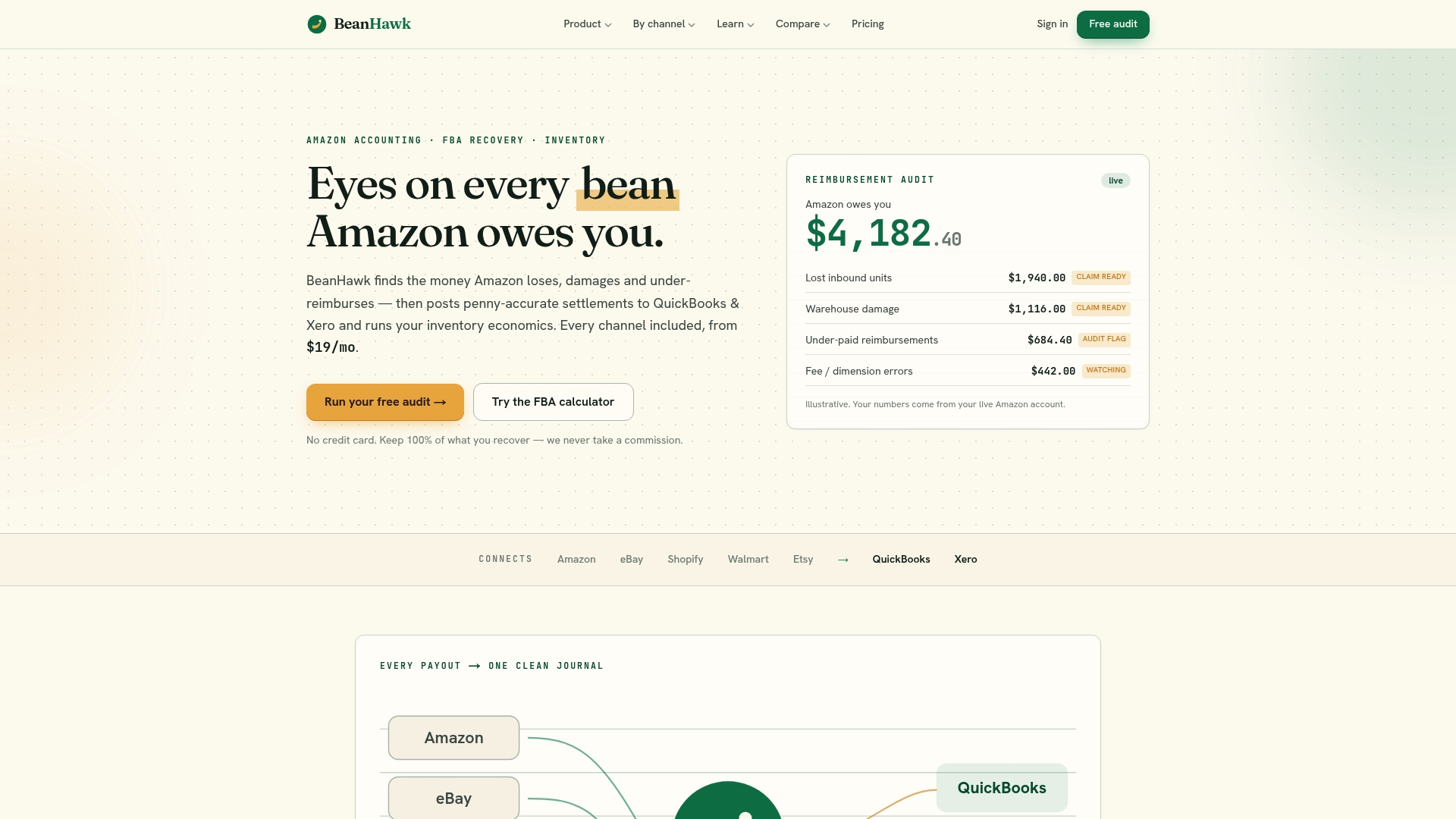
Beanhawk’s free reimbursement audit scans your FBA ledger and inbound shipment history to estimate what is recoverable, typically in 60,90 minutes. You get a prioritized list of claims and a clear picture of how automated QuickBooks journal posting would look for your account. Setup on the QuickBooks side requires only authorization and account mapping , Beanhawk handles the rest. Visit beanhawk.com to start your free audit and see your numbers before the next settlement closes.
Useful sources
- Connect Amazon Seller Central to QuickBooks , Intuit’s official step-by-step guide covering the native connector setup, transaction confirmation workflow, and the Match-not-add rule for bank deposits.
- Amazon FBA Accounting: The Seller’s Guide to Clean Books , covers accrual vs. deposit-based accounting, correct reimbursement classification, and why continuous ledger monitoring matters.
- How to Reconcile Amazon Seller Settlements in QuickBooks , practical walkthrough of the clearing-account method and the deposit-based accounting pitfall.
- Connect Amazon Seller Central to QuickBooks Online: what the free Intuit connector actually posts , analysis of the native connector’s limitations, the undifferentiated adjustment line problem, and when paid automation becomes necessary.
Save your Amazon settlement report and the matching QuickBooks journal entry together for every period. That pairing is your audit trail if a discrepancy surfaces months later or if you need to substantiate a reimbursement claim.