
Map Every Amazon Settlement Line to QuickBooks for Bookkeepers

Map every Amazon fee type to its own QuickBooks account instead of posting your net deposit as one lump sales line, route everything through an Amazon clearing account, and record reserves as a receivable until Amazon releases them. Use per-transaction sync when you need SKU-level cost of goods sold (COGS), and fall back to summary imports only when they still itemize fee types separately.
TL;DR:
- Classify fulfillment fees as COGS when your policy treats them as direct costs; otherwise, use fulfillment expense, because the choice changes reported gross margin.
- Reconcile the reserve receivable monthly against Current Reserve Amount and Previous Reserve Amount Balance, tracking releases and adjusting for chargebacks, reimbursements, or disposals.
- Choose per transaction syncing for SKU level COGS or order audits; summary syncing saves time but removes order detail needed for margin analysis.
- Before launch, set the deposit account, create every fee account, confirm tax mapping, and test one settlement; expand only after its clearing balance reaches zero.
Table of Contents
- Amazon fee categories and where they belong in your chart of accounts
- Use a clearing account so your bank deposit actually reconciles
- Why reserves and timing differences trip up your books
- How QuickBooks connector modes change your mapping decisions
- A worked example: from settlement report to reconciled payout
- How BeanHawk automates settlement posting and continuous ledger monitoring
- Practical recommendation and next steps
- Get a free reimbursement audit and automated QuickBooks posting
- FAQ
- Sources
- Official docs and community threads to verify details
Amazon fee categories and where they belong in your chart of accounts
Every Amazon settlement report lists a mix of revenue, fees, and adjustments that need separate homes in QuickBooks. Amazon’s own Fee Explainer tool breaks down these charges to your selling account, and settlement reports typically include lines such as Principal, Referral Fees, FBAPerUnitFulfillmentFee, StorageRenewalBilling, Advertising charges, RefundAdministrationFee, ShippingHB, RefundCommission, DisposalComplete, and reserve balances.
Each of these needs a distinct QuickBooks account so your profit and loss statement actually reflects what happened:
- Principal (gross sales) posts to a revenue account, never netted against fees.
- Referral or Commission fees post to a sales commission expense or contra-revenue account, since this is what you pay to sell on the platform.
- FBAPerUnitFulfillmentFee goes to either COGS or a fulfillment expense account, depending on whether your accounting policy treats fulfillment as a direct cost of the sale.
- StorageRenewalBilling (monthly storage) belongs in a storage or fulfillment expense account, separate from per-unit fulfillment.
- Advertising or PPC charges need their own advertising expense line so you can measure true profitability per campaign.
- RefundAdministrationFee posts to a chargeback or refund-processing expense account.
- Reimbursements post to other income or as a contra-expense, since they represent money Amazon owes you back.
Whether fulfillment costs sit in COGS or operating expense changes your gross margin on paper, even though cash flow is identical either way. Sellers who lump fulfillment fees into general operating expense often overstate gross margin and understate the true cost of each sale, which skews pricing decisions down the line.
Before your first import, build this checklist into your chart of accounts: a Sales Commission expense account, a Fulfillment Expense account (or COGS subaccount), a Storage Expense account, an Advertising Expense account, a Refund Administration Fee account, and an Other Income account for reimbursements. Getting these set up correctly once saves hours of recoding later.
Use a clearing account so your bank deposit actually reconciles
An Amazon clearing account (sometimes called a holding account) sits between your Amazon settlement activity and your actual bank deposit. Its job is simple: catch every sales and fee line from a settlement period, then zero out once the real cash hits your bank. Without it, you risk double-counting income or burying fees inside a single deposit entry that nobody can audit later.
There are two common posting patterns, depending on how granular you need your books to be.
- Per-transaction import. Each order posts as a sales receipt with its related fee lines (referral fee, fulfillment fee, advertising) booked as expenses, all routed into the clearing account. When Amazon pays out, you clear the account to your bank deposit in one matching entry.
- Summary or payout-level import. You post a single deposit entry representing gross sales, with offsetting expense lines by fee type also hitting the clearing account. A single clearing-to-bank entry then closes it out.
In both patterns, refunds reduce the sales line in the clearing account, and reimbursements post as a credit to other income within the same clearing account, not directly to your bank.
Before you finalize any payout, run through this checklist: confirm that “Funds in this payout” is mapped to the correct clearing account, check for any pending reserve entries that shouldn’t be included yet, and scan for unmapped adjustment lines that would otherwise sit as unexplained differences , see our practical guide to importing transactions into QuickBooks for tips on testing CSV and row imports. QuickBooks’ own documentation on the Amazon Connector describes this staging step explicitly, using an Undeposited Funds or Payments-to-Deposit account before the final bank deposit is created. For a deeper walkthrough of this exact workflow, our guide on reconciling Amazon payouts in QuickBooks covers the matching process step by step.
Why reserves and timing differences trip up your books
Amazon withholds a portion of your payout as an “unavailable balance,” a reserve meant to cover future returns, chargebacks, and risk adjustments. This isn’t lost money. It’s money Amazon is holding temporarily, and your books should reflect that distinction.
Accounting professionals who discuss this in the QuickBooks Community recommend recording the unavailable balance as a short-term receivable from Amazon rather than treating it as an expense or writing it off. Booking it as lost revenue overstates your losses for the period and misstates your actual financial position once Amazon releases the funds.
Timing differences compound this problem. If you recognize revenue on an accrual basis but Amazon releases the related reserve weeks or months later, your receivable needs to track that gap so your P&L reflects the right period for both the sale and the fees tied to it.
Each month, reconcile your reserve receivable against the “Current Reserve Amount” and “Previous Reserve Amount Balance” fields on your settlement report. Trace every release event, and adjust your entries whenever Amazon issues a chargeback, reimbursement, or disposal against the reserve.

Pro Tip: Keep a running reserve reconciliation spreadsheet alongside QuickBooks so you can spot a stuck or shrinking reserve balance before it becomes a three-month mystery during tax season.
How QuickBooks connector modes change your mapping decisions
QuickBooks’ native Amazon Connector pulls settlement data into an “Integration transactions” list, showing items like “Payment received” and “Funds in this payout.” Once you confirm a transaction, QuickBooks automatically creates the corresponding Sales Receipts and Expenses based on your mapping rules.
The sync mode you choose changes what level of detail you get:
- Per-transaction sync gives you SKU-level sales and fee data, which matters if you need accurate COGS by product or plan to audit specific orders later.
- Summary sync rolls up an entire payout into fewer entries, which is faster to maintain but hides per-order detail you might need for margin analysis.
- Third-party automation becomes worth adding once your order volume, fee complexity, or reimbursement frequency outpaces what manual review can reasonably catch each month.
- Before going live, select the correct deposit account, create matching accounts for every fee type in advance, confirm tax mapping, and test the whole flow on a single settlement before trusting it with a full month of data.
For the technical setup itself, our guide to connecting Amazon to QuickBooks Online walks through each configuration screen.
A worked example: from settlement report to reconciled payout
Say a settlement report shows $5,000 in Principal (gross sales), $750 in Referral Fees, $400 in FBAPerUnitFulfillmentFee, $120 in StorageRenewalBilling, $200 in Advertising, and a $50 reimbursement, for a net deposit of $3,480.
- Post the $5,000 Principal as a sales receipt into your Amazon clearing account.
- Post the $750 Referral Fee, $400 fulfillment fee, $120 storage fee, and $200 advertising charge as expense lines, each to its own account, also hitting the clearing account.
- Post the $50 reimbursement as a credit to Other Income within the clearing account.
- When the $3,480 payout lands in your bank, create a clearing-to-bank entry that moves exactly that amount out of the clearing account, leaving it at zero for that period.
If the clearing account doesn’t land at zero, check for the usual culprits: an unmapped adjustment line, a rounding difference between the settlement report and the bank deposit, a reimbursement that posted a period late, or a refund commission reversal that wasn’t captured. Before closing the books on a payout, verify that your settlement total, clearing account balance, and bank deposit amount all agree, and confirm every adjustment line has a home. Running your fee assumptions through a free FBA fee calculator beforehand can help you sanity-check whether a mapped number looks right.
How BeanHawk automates settlement posting and continuous ledger monitoring
Once volume climbs, manual mapping becomes a monthly grind. We built BeanHawk’s Amazon accounting software to post penny-accurate, summarized settlements directly to QuickBooks and Xero while continuously monitoring inbound shipments and FBA ledger events for reimbursement opportunities, without taking a commission on recovered funds.
- We handle high-volume accounts where manual reconciliation would eat hours every month.
- We flag frequent reimbursements and complex returns that are easy to miss by hand.
- Low-volume sellers with simple fee structures often do fine mapping manually, at least until volume grows.
Practical recommendation and next steps
My advice: set up your fee accounts, route everything through a clearing account, and import one real settlement before trusting the whole month to it. Reconcile that single payout, then scale the process up.
, Tim
Get a free reimbursement audit and automated QuickBooks posting
If mapping fees and chasing reserves every month isn’t where you want to spend your time, we built BeanHawk to do it for you: automated settlement posting that follows the exact mapping principles above, plus continuous monitoring that catches reimbursements you’d otherwise miss.
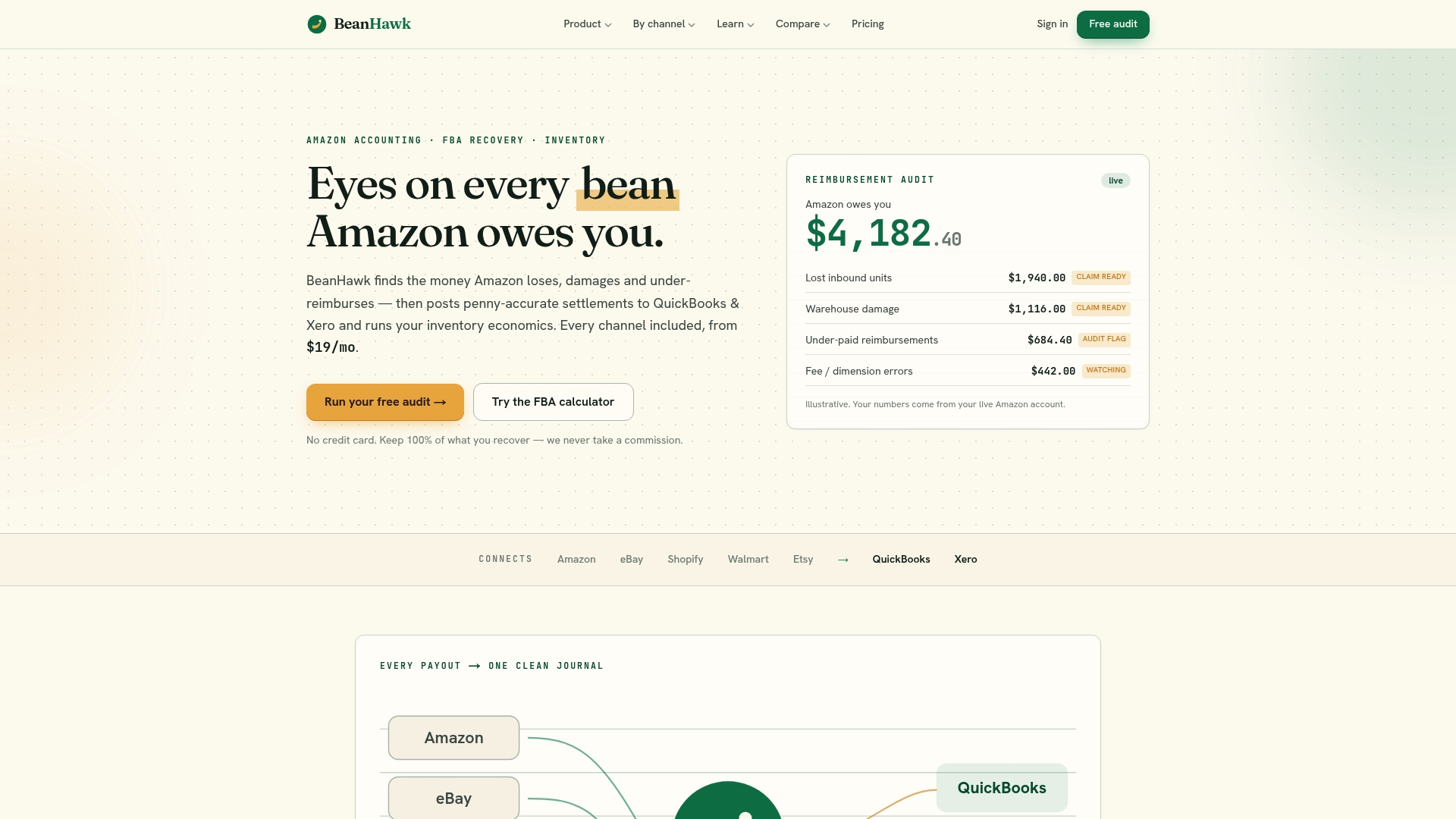
- Start with our free FBA reimbursement audit to see what’s currently unclaimed.
- Compare plans on our pricing page, with options from Free up to Scale at $99 per month.
- Manual mapping works fine at low volume; once reconciliation starts eating real hours each month, automation pays for itself.
FAQ
Why do CPAs not like QuickBooks Online?
Some CPAs find QuickBooks Online’s default bank feed rules and auto-categorization prone to misclassifying Amazon settlement data if accounts aren’t set up correctly first. The fix isn’t avoiding QuickBooks, it’s building a proper chart of accounts and clearing-account workflow before connecting Amazon, as outlined above.
How are Amazon fees calculated?
Amazon fees vary by category and include referral fees based on sale price, FBA fulfillment fees based on size and weight, and storage fees based on volume and time of year. The exact rates and definitions for each fee type are listed in Amazon’s Fee Explainer tool inside Seller Central.
Does Amazon integrate with QuickBooks?
Yes, QuickBooks offers a native Amazon Seller Central connector that imports payment and payout data and creates sales receipts and expenses once you confirm the transactions. Third-party tools, including our own settlement posting at BeanHawk, can extend this with automated, penny-accurate mapping for higher-volume sellers.
How profitable is Amazon arbitrage?
Profitability in Amazon arbitrage depends heavily on sourcing cost, fee structure, and how accurately a seller tracks fulfillment and storage expenses against revenue. Mapping fees precisely in QuickBooks, rather than relying on net deposit totals, is one of the more reliable ways to see true margin by product rather than an inflated or deflated estimate.
What should I do about Amazon’s unavailable balance in my books?
Record it as a short-term receivable from Amazon rather than as lost revenue, since it represents funds Amazon is holding temporarily for returns and chargebacks. Reconcile it monthly against your settlement report’s reserve fields, as recommended in QuickBooks Community discussions on the topic.
Sources
- New Fee Explainer tool breaks down charges to your selling account
- Connect Amazon Seller Central to QuickBooks
- Amazon Unavailable Balance | QuickBooks Community
- Help understanding ‘amount-description’ in All Statements Payment Report Flat File V2
Official docs and community threads to verify details
- Amazon Fee Explainer tool
- Connect Amazon Seller Central to QuickBooks
- Amazon Unavailable Balance, QuickBooks Community
- All Statements Payment Report Flat File V2 field guide
- BeanHawk Amazon accounting software